You paste a ChatGPT table into Excel and some values are no longer what ChatGPT wrote. Employee ID 007 becomes 7, a ZIP code loses its leading zero, a size like 3-4 turns into a date, and a 16-digit order number shows up as 1.23457E+15.
The fix is to set the columns to Text before you paste the ChatGPT table into Excel. If you’ve already pasted, changing the format afterwards won’t bring the values back, so paste again into the Text columns. ChatGPT didn’t change anything. The copied text still had every value exactly as it appeared in the chat; Excel converted them as it read the paste.
Before you paste a ChatGPT table into Excel, set the columns to Text
- Select the columns you’re about to paste into by clicking their letters, for example A to F.
- On the Home tab, open the number format list (it usually says General) and choose Text.
- Click the first cell and paste.
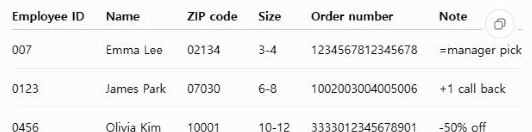
With the columns set to Text, every value in this test came through unchanged: 007, 02134, 3-4, all 16 digits of 1234567812345678, and =manager pick as plain words. Microsoft’s Stop automatically changing numbers to dates page gives the same advice: preformat the cells as Text.

Excel marks the number-like cells with a small green triangle, its flag for a number stored as text. Here that’s the point: employee IDs and ZIP codes are labels, not amounts.
Already pasted? Changing the format won’t bring zeros back
Once a value has been converted, the original text is gone from the cell. In this test, switching the pasted columns to Text afterwards left 7, 2134 and 1.23457E+15 exactly as they were. The sizes turned into plain numbers like 46085, which is how Excel stores the date March 4, 2026.

What did work: leave those columns as Text and paste the same copied table again over the top. Every value came back as ChatGPT wrote it. If the table isn’t on your clipboard anymore, copy it from the chat again first.
For one or two cells, typing an apostrophe before the value also keeps it as text. In an earlier test on the same PC, that worked for a value entered into a cell, but an apostrophe inside the pasted text stayed visible in the cell.
What happens when you paste a ChatGPT table into Excel
Here is the test table after a normal paste into a new workbook, where every column starts as General.
| In the ChatGPT table | After a normal paste | What Excel did |
|---|---|---|
| 007, 0123, 0456 | 7, 123, 456 | Read them as numbers, dropped the leading zeros |
| ZIP codes 02134, 07030 | 2134, 7030 | Same |
| Sizes 3-4, 6-8, 10-12 | Dates: March 4, June 8, October 12 | Read them as month and day |
| 1234567812345678 | 1.23457E+ | Kept 15 digits |
| =manager pick | #NAME? | Read it as a formula |
| + | Unchanged | Left them as text |
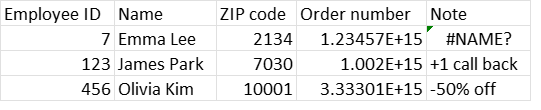
The order numbers are the change people miss. Excel keeps numbers to 15 digits, so the 16th digit of each order number became 0. Microsoft explains this limit on its Keeping leading zeros and large numbers page. A widened column doesn’t help, because the digit is already gone.
The sizes became dates in the current year. On US English Excel, Microsoft’s own examples show how such entries look: 12/2 becomes 2-Dec, and 3/4 becomes 4-Mar.
Only one note turned into an error. A note starting with = was read as a formula, while the ones starting with + and – stayed as text in this test.
Where the copied table comes from
ChatGPT showed two copy buttons in this test: one at the top right of the table and one under the answer. Both put the same tab-separated text on the clipboard, one value per cell, exactly as shown in the chat. The changes happened inside Excel.
Copied text doesn’t always arrive like this. In a separate session signed in to ChatGPT in Chrome, the copy button under an answer also carried a formatted version of the table. That copy wasn’t tested in Excel.
If copying a ChatGPT table into Excel gives you lines of | characters in a single column, it was copied as Markdown. The Markdown Remover has a Copy table for Excel button that turns those lines into the same tab-separated rows. It doesn’t stop Excel’s conversions, so set the columns to Text first either way.
Excel’s Automatic Data Conversion options
Microsoft documents options in Excel that change some of these defaults: removing leading zeros, cutting long numbers to 15 digits, and turning some runs of letters and numbers into dates. They’re described on the same Keeping leading zeros and large numbers page. This test didn’t change them, so the results above are Excel’s default behavior.
How this was tested, and what wasn’t
The test ran on October 5, 2026, with Excel 16.0 (build 20326) for Windows. The Windows regional format was set to English (United States) for the test. The table came from ChatGPT used without signing in, in a Chromium-based browser. The copied text was pasted into a new workbook at cell A1 by automation, the same text a Ctrl+V pastes; no key was pressed.
This Office installation is Korean, with an English interface. Under the US format Excel stored 3-4 as March 4, but it displayed converted dates in Korean, so the Size column is hidden in the default-paste picture. The pictures are renders of the cells, not screenshots of the Excel window.
Not tested:
- Excel for Mac and Excel for the web
- Google Sheets (a separate test on October 4 with a different table showed the same kinds of changes)
- The signed-in ChatGPT copy that includes formatting
- Excel’s Automatic Data Conversion options
These results come from one table on one PC. Before you paste a ChatGPT table into Excel next time, look for columns of IDs, ZIP codes or long reference numbers. Those are the ones to set to Text.