To paste multiple lines into one Excel cell, open the cell before you paste: click it, press F2, then press Ctrl+V and Enter. Click the cell once and paste without opening it, and Excel reads every line break as a new row, so the lines land in separate cells going down the column.
On September 28, 2026, the same three lines went into Excel 16.0 (build 20326) on Windows four ways. Two put all three lines in one cell and two split them across three rows, and one of the two that split was Paste Special with Unicode Text. A real ChatGPT answer, pasted into a selected cell, took up 64 rows. The numbers below come from one installation, one build, one day, and one copied answer each from ChatGPT and Gemini.
Two ways to paste multiple lines into one Excel cell
Both ways to paste multiple lines into one Excel cell do the same thing: they put the cell into edit mode before the clipboard arrives.
- Click the cell once, press F2, then press Ctrl+V and Enter.
- Click the cell once, click in the formula bar, then press Ctrl+V and Enter.
In this test both pastes put all three lines inside cell A1, one with the text open in the cell and one with it open in the formula bar. Excel also switched the cell’s line wrapping on by itself and set the row height to 49.5, so the three lines were visible without any formatting afterwards.
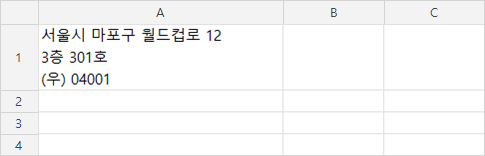
Here is what the four pastes did with the same clipboard.
| How the lines were pasted | Where they landed |
|---|---|
| Cell selected, then Ctrl+ | Three rows: A1, A2, A3 |
| Paste Special, Unicode Text | Three rows: A1, A2, A3 |
| F2 first, then Ctrl+ | One cell: A1, three wrapped lines |
| Text open in the formula bar, then Ctrl+ | One cell: A1, three wrapped lines |
The first row ran twice, once with LF line breaks on the clipboard and once with CRLF. Both split the same way.
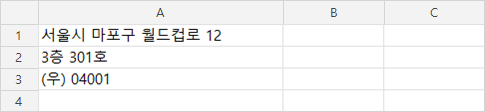
Paste Special did not keep the lines in one cell
Paste Special is the next place to look, because it offers to drop the formatting and bring the clipboard in as plain text. In this test that changed nothing. Paste Special with Unicode Text put the three lines in A1, A2 and A3, the same cells a plain Ctrl+V used. In Excel that option sits under Home, then Paste, then Paste Special.
That result narrows the problem down. The split is not coming from the paste format, so no paste option fixes it. To paste multiple lines into one Excel cell, the thing to change is the cursor, not the format.
There is one other approach, which is to replace every line break in the text with a space before pasting. That does keep the text in one cell, by throwing the line breaks away. This test did not cover it.
Why a selected cell turns each line into a row
A selected cell tells Excel where to start putting rows. An open cell tells Excel where to put characters. With the cell selected, a line break in the clipboard means the next row, the way a tab means the next column. With the cell open, the same line break is one more character going into that cell.
Microsoft’s Edit cell contents page describes three ways into that open state, which it calls Edit mode: “Select the cell that contains the data you want to edit, and then press F2,” double-clicking the cell, or selecting anywhere in the formula bar. Whether the text then opens inside the cell or in the formula bar is set by the Allow editing directly in cells checkbox, under File, Options, Advanced. That page applies to Excel for Microsoft 365, Excel 2024 and Excel 2021.
The page is about editing, not about pasting, and it does not say what a paste into Edit mode does. That part is this test’s own result. To type a line break by hand instead of pasting one, the key is Alt+Enter.
One real ChatGPT answer landed in 64 rows
Three short lines are the easy case. The test also pasted two real AI answers into a selected cell, taken from the copy button in ChatGPT and in Gemini on September 19, 2026.
| What was pasted | Rows used | Empty rows |
|---|---|---|
| One ChatGPT answer, Ctrl+ | 64 | 25 |
| The same answer, Unicode Text | 61 | 17 |
| One Gemini answer, Ctrl+ | 31 | 2 |
| The same answer, Unicode Text | 57 | 20 |
Not one cell in those pastes held a line break. Every line went to its own row, and the empty rows are the blank lines between paragraphs in the answer. Changing the paste format changed how many empty rows appeared; it did not gather the lines into a cell either way. This test did not paste an AI answer into an open cell, so what a whole answer does in Edit mode is not measured here.
Pasted as Unicode Text, the Markdown in the answers came through as characters: asterisks around the bold words, hash marks in front of the headings, pipes between the table cells. The Markdown Remover takes those symbols out of copied AI text in the browser. It does not put the lines back into one cell, so for that part the answer is still to open the cell first.
A line break inside a table cell has a related edge. In a separate paste of a small HTML table built for this test, one cell carried its own line break. Excel put that cell’s two lines in two rows, B2 and B3, and left the rest of the table on its own row, so the columns no longer lined up. That did not happen with the two AI answers above, whose cells held no line breaks at all.
If what went wrong is the values rather than the layout, a leading zero gone or a size turned into a date, that is a different problem: see when a ChatGPT table pasted into Excel changes your numbers.
If the lines already landed in separate rows
If the text is still on the clipboard, the short way back is to clear those cells and paste multiple lines into one Excel cell again with F2. The formula below is for when the clipboard has moved on:
=TEXTJOIN(CHAR(10), TRUE, A1:A3)
CHAR(10) is the line break, and TRUE is the ignore_empty argument, which Microsoft’s TEXTJOIN function page describes as “If TRUE, ignores empty cells.” That page applies to Excel for Microsoft 365, Excel 2024 and Excel 2021, each of those also for Mac, plus Excel 2019 and Microsoft365.com. Excel 2016 is not on the list. For that version the same join is =A1&CHAR(10)&A2&CHAR(10)&A3. It produced the same cell contents in this test.
Then comes the part that looks like a broken formula. The join is correct, but the result showed as one long line, because Wrap Text did not switch on by itself the way it did after the F2 paste. The row height stayed at 16.5.

Turn Wrap Text on for that cell and fit the row height, and the three lines appear. Here the row went to 49.5.
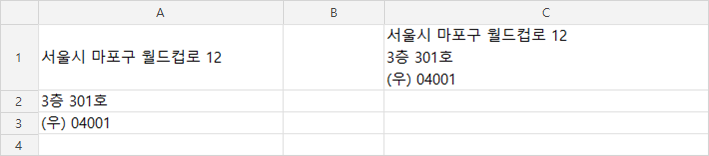
The joined cell is a formula, so it empties when the cells it reads are deleted. Copy it and paste it back as values first. In this test the pasted-value copy still held all three lines after A1 to A3 were cleared.
How this was tested, and what wasn’t
The pastes ran on September 28, 2026, in Excel 16.0 (build 20326) for Windows. The installation’s interface is Korean and the test text is Korean too. In the pictures the three lines are a street address, and the point is where the lines landed. The pictures were made on September 30 in the same Excel: the picture of the split rows is an actual paste, and the other three reproduce the cell states the test recorded.
Two of the four pastes were real key presses into the visible Excel window, the F2 paste and the formula bar paste. The formula bar paste was run by turning off Allow editing directly in cells and pressing F2, which opens the text in the formula bar. Clicking in the formula bar with the mouse was not tested.
The selected-cell paste and Paste Special went through Excel’s automation interface, taken to be the same path a Ctrl+V uses. The AI answers were one copied answer each, so a different answer gives a different number of rows.
Not tested:
- Double-clicking a cell instead of pressing F2, which Microsoft lists as the same Edit mode
- Clicking in the formula bar with the mouse, the third route Microsoft lists
- Excel for Mac, Excel for the web and Google Sheets
- Excel 2016 and Excel 2019
- Pasting a whole AI answer into an open cell
- A key-pressed Ctrl+V into a selected cell
- An English-language Excel installation
The gap worth keeping in mind runs between the two halves of this test: a cell opened with F2 came back with its line wrapping already on, and a cell filled by a formula did not. Both results are from one installation on one day, four pastes, and one copied answer each from ChatGPT and Gemini.