Paste a ChatGPT answer into Word, Google Docs or Excel: what each app changes

When you paste a ChatGPT answer into Word or Google Docs, what changes is the way it looks. Paste the same kind of content into Excel and the cells can end up holding something different from what the chat showed. A formatting change is one you can see. A value change is one that looks right and is not.

That split decides what to do first, and in two of the three apps the moment that matters comes before the paste. If you paste a ChatGPT answer into Excel, set the columns to Text first. If a block of several lines belongs in one cell, open the cell with F2 before pasting. If what you need is really a spreadsheet, ask the chat for an .xlsx file and skip the paste. In Word the work comes afterwards instead, in the Styles gallery.

The numbers below are not one comparison run. They come from seven tests made between September 19 and October 5, 2026, each on its own day with its own input, on one Windows PC with Word and Excel 16.0, build 20326. The Google Docs test ran on one personal Google account, and the three file requests used paid or work chat accounts. No single answer was sent into all three apps. Each number links to the test that measured it.

Two kinds of change, and only one of them is visible

In Word and in Google Docs the content arrived and the presentation did not. Reading the document tells you what happened, because the difference is on the page. In Excel the sheet looks finished either way, and the change sits inside the cells: a value replaced by another value, or a row count that no longer matches the table that was copied.

Where it was pastedWhat came out differentKind of change
Word, plain Ctrl+VHeading lines arrived as bold body textDisplay
Google Docs, Ctrl+V with the setting offMarkdown characters stayed as charactersDisplay
Excel, a table into General columns007 read as 7, 3-4 read as a date, the 16th digit goneContent
Excel, several lines into a selected cellThree lines became three rows, one answer 64 rowsContent
Excel, a Word table4 rows became 6, with 6 merged cellsContent

The first two rows announce themselves. The last three are the ones to check on purpose, because a sheet with changed values in it still looks like a finished sheet.

In Excel, paste a ChatGPT answer and the values change

Pasted into columns left at General, the test table came in with its labels read as numbers. Employee ID 007 came in as 7, ZIP code 02134 as 2134, a size written 3-4 as the date March 4, and a 16-digit order number as 1.23457E+15. Microsoft’s Keeping leading zeros and large numbers page gives the limit behind that last one: Excel holds 15 significant digits, so the 16th was already gone.

Setting those columns to Text before the paste kept every value as written, and changing the format afterwards brought nothing back. When a ChatGPT table pasted into Excel changes your numbers has the cells before and after.
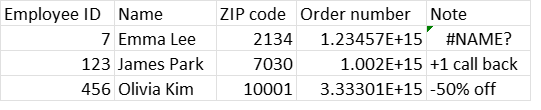
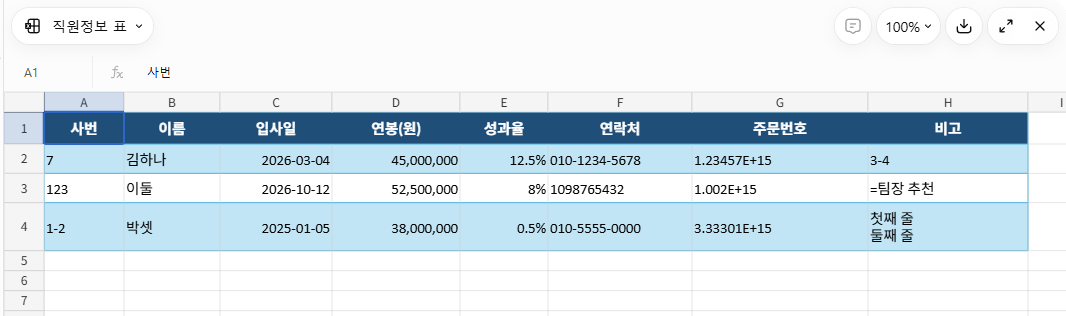
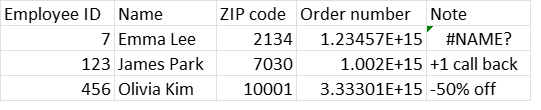
Cells in Excel after you paste a ChatGPT answer whose table lands in General columns: 007 shows as 7, ZIP code 02134 as 2134, the order number as 1.23457E+15 and =manager pick as #NAME?
After a normal paste into General columns on October 5, 2026: 7, 123 and 456 instead of 007, 0123 and 0456, ZIP codes without their leading zero, order numbers as 1.23457E+15, and #NAME? in the Note column. These are renders of the cells rather than screenshots of the Excel window, and the Size column is hidden here; on a narrow screen the line to read is the row of values under the headers. From the test of a ChatGPT table pasted into Excel.

There is a route that skips the paste. Asked for the same table as a file, ChatGPT, Claude and Gemini each returned an .xlsx on the first request in that test, and all 24 cells in the three downloaded files held what was expected. One thing to know before trusting the screen: the preview pane that opens before the download showed the employee ID as 7, the same conversion a paste makes. What to check when you ask ChatGPT for an Excel file lists the five cells worth opening first.

Where the lines and the rows landed in Excel

Values are one half of it. The other half is where the content lands, and there the results split by what was on the clipboard.

Paste a ChatGPT answer, or any other block of text, into a selected cell and it goes down the column, one line to a row. Three lines landed in A1, A2 and A3, and one real ChatGPT answer took 64 rows, 25 of them empty. Pressing F2 to open the cell first put the same three lines inside one cell: four ways to paste multiple lines into one Excel cell has what each route did.

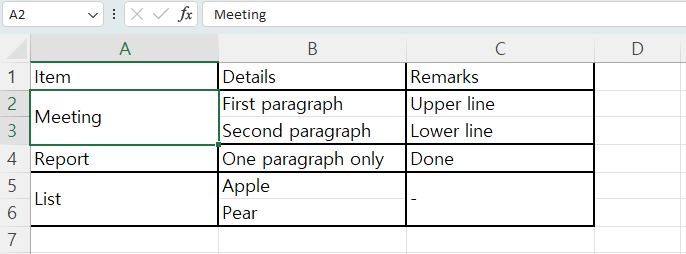
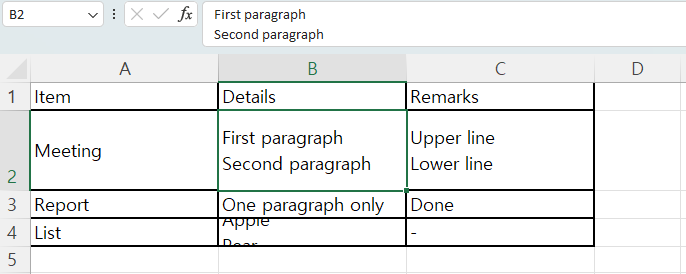
A table copied out of a Word document behaves differently again. A 3-by-4 table pasted with Ctrl+V came in as 6 rows. Each cell holding two lines split into two rows, and the one-line cells in those rows came in merged to cover the split. The merged ranges were A2:A3, A5:A6 and C5:C6: three ranges, six cells in all. Replacing the line breaks inside Word before copying kept it at 4 rows with nothing merged, as pasting a Word table into Excel splits rows and merges cells sets out.
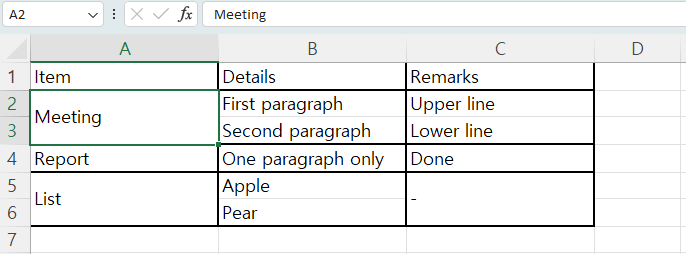
A Word table pasted into Excel with Ctrl+V: six rows instead of four, with cells A2:A3, A5:A6 and C5:C6 merged to cover the split rows
A Word table pasted into Excel with Ctrl+V: six rows instead of four, with cells A2:A3, A5:A6 and C5:C6 merged to cover the split rows. Test of September 29, 2026, run again for this picture on October 24, 2026 with the same rows and the same merged ranges. From the test of a Word table pasted into Excel.

The opposite direction is its own problem. An Excel table pasted into Word keeps the column widths it had in the sheet, which is how an Excel table pasted into Word runs off the page.

Word kept the lists and the table, not the heading styles

Paste a ChatGPT answer into a Word document and most of the structure arrives as Word features. In four pastes the bulleted lists came in as Word lists, the numbered steps kept their numbers in order, the tables came in as real tables, the links stayed clickable and the bold phrases stayed bold. Not one of the four pastes put a Markdown symbol on the page.

The exception was the headings. The lines that read as headings came in as bold body text, and in the one document that was read out of Word rather than read on screen, all 42 paragraphs carried the Normal style. So the job after a paste into Word is to apply Heading 1 and Heading 2 to those lines by hand. What you actually get when you paste ChatGPT into Word covers the three smaller fixes behind that one. These were four pastes of two answers, one from ChatGPT and one from Gemini, each copied two ways, so a different answer can arrive differently.
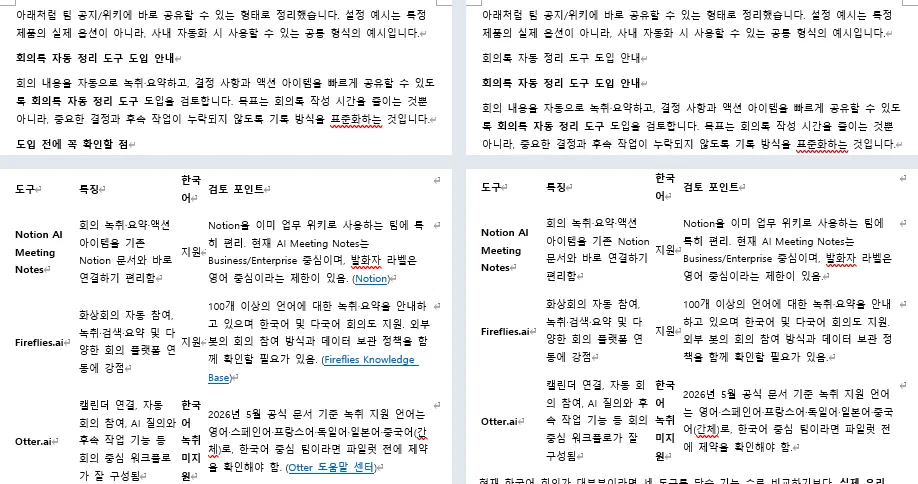
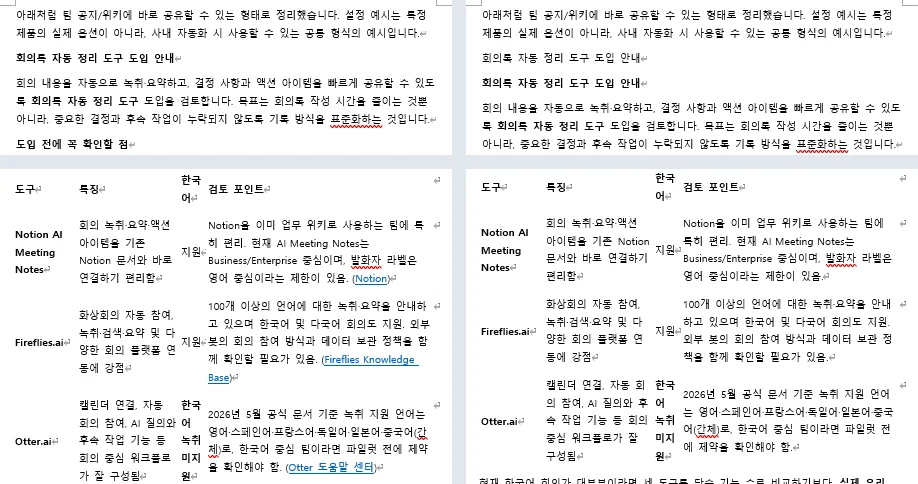
A ChatGPT answer pasted into two Word documents side by side: both hold a borderless Word table, the heading lines are bold body text, and the source links inside the table cells are there only in the left document
The same chat answer pasted into two Word documents on September 19, 2026, from the copy button on the left and from a dragged selection on the right. Both hold a borderless Word table and heading lines that are bold body text, and the source links inside the table cells are there only on the left. The answer and this PC’s Word are in Korean, so what to look at is the structure. From the test of pasting a ChatGPT answer into Word.

Google Docs kept the characters as characters

Paste a ChatGPT answer into Google Docs with the Markdown setting off and the symbols stay on the page as text. The test pasted a set of Markdown meeting notes copied as plain text rather than a chat answer: a plain Ctrl+V produced three lines beginning with hash marks, one asterisk pair, one tilde pair, four rows of pipe characters, two backtick fence lines and one bracketed link address, none of them turned into formatting. Automatic list detection was switched on at the time, and the numbered and bulleted lines still did not become lists.

The setting is the thing to change before the paste. Google’s 2024 announcement Import and export Markdown in Google Docs says the Markdown options are off by default and are switched on under Tools, then Preferences, then Enable Markdown. With the box checked and Paste from Markdown chosen from the right-click menu, the same text left nothing behind as a character, though the code block arrived as an ordinary paragraph rather than code. The Google Docs test of that option has the result element by element.
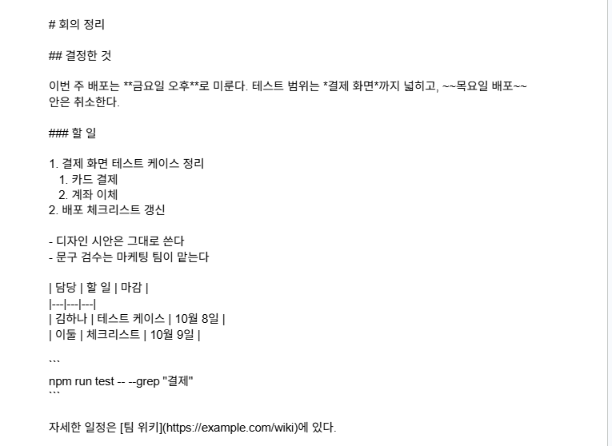
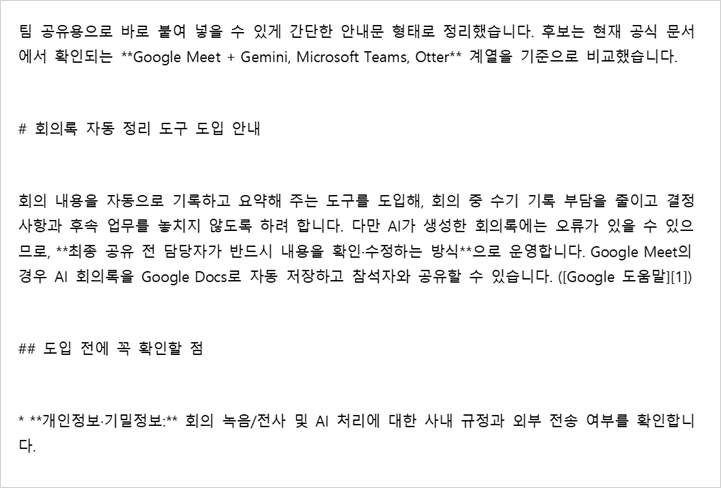
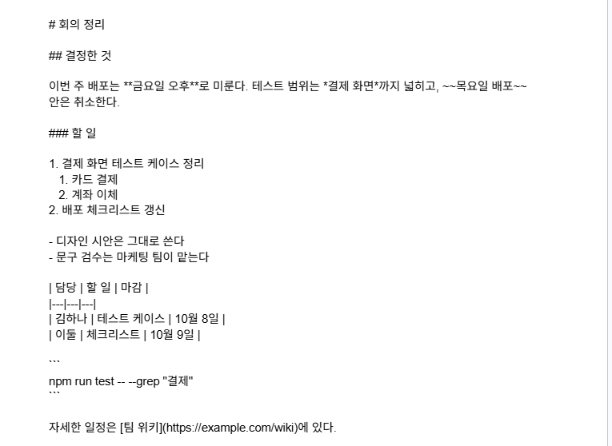
Text pasted into Google Docs with a plain Ctrl+V while Enable Markdown was off: hash marks, asterisk pairs, tilde pairs, pipe-character table rows and backtick fences are all still plain text
The same text pasted into Google Docs with a plain Ctrl+V while Enable Markdown was off, October 4, 2026: the hash marks, the asterisk and tilde pairs, the pipe-character table rows and the backtick fences are all still plain text. The document text is the Korean test input, so what to look at is the characters. From the Google Docs test.

What these numbers are, and what they are not

The dates run September 19 for the Word pastes, September 28 for the lines into one cell, September 29 for the Word table, October 2 for the Excel table into Word, October 3 for the file requests, October 4 for Google Docs and October 5 for the ChatGPT table into Excel.

Those are seven separate tests rather than one comparison. The same answer was never sent into all three apps in one sitting, so the rows in the table above are the same kind of paste, not the same paste.

The environment is narrow as well. All of it ran on one Windows PC with a Korean Office installation, Word and Excel 16.0 build 20326. The Google Docs test used one personal Google account rather than a Workspace account, and the three file requests used ChatGPT Pro, Claude Max and a Gemini Google Workspace work account.

Excel for Mac, the web versions of either app, Google Sheets and an English Office installation were not tested. The plans behind the answers in the other tests were not recorded, and each test used one table or one answer, so a different input can land differently.

Why an AI answer carries those characters in the first place is a separate question, and this page does not answer it: why the characters are worth clearing out of an AI answer does. The Markdown Remover on this site strips those symbols out of copied text in the browser. It does not stop Excel’s conversions, gather lines back into one cell, or apply heading styles in Word.

Where you paste a ChatGPT answer decides when you can act. The conversion happens at the moment of the paste, so in Excel the column format, the open cell or the file request has to come first, and in Google Docs the one checkbox. Word is the one of the three where the work waits until afterwards, in the Styles gallery.

Once an Excel column has converted a value, changing the format afterwards does not restore it, so the shorter route is to paste the same copied table again into columns already set to Text. All of it is one PC, two months of 2026, and one test for each result above.
Pasting a Word table into Excel splits rows and merges cells

When you paste a Word table into Excel, a cell that holds two lines splits into two rows, and the cell next to it comes in merged across both. The fix runs in Word, before the copy: replace the line breaks inside the table with a marker, paste, then turn the marker back into line breaks in Excel.

The numbers here come from a test on September 29, 2026, in Word 16.0.20326 and Excel 16.0 (build 20326) on Windows, run again on October 24, 2026 for the pictures with the same results. One 3-by-4 table was pasted three ways. A plain Ctrl+V produced 6 rows and 6 merged cells. Paste Special with Unicode Text produced 7 rows and no merged cells, but the second lines landed in the wrong column. Replacing the line breaks first produced 4 rows and no merged cells. One installation, one build, one table, two runs.

Keep the rows: swap the line breaks before you copy

To paste a Word table into Excel without the extra rows, the work happens in Word first. These steps come from an accepted answer on Microsoft Q&A, Copying from Word to Excel and retaining Line Breaks, posted June 30, 2021.

  1. In Word, select the table. The replacement in this test ran inside the table’s range only.
  2. Open Find and Replace. Find ^p, the paragraph mark, and replace it with @@. Run it again with ^l, the manual line break.
  3. Copy the table and paste it into Excel.
  4. In Excel, open Find and Replace, find @@, click in the Replace with box and press Ctrl+J.

In this test the paste landed in 4 rows with no merged cells, each two-line cell holding one value with @@ in the middle. After the replacement in Excel, cell B2 held two lines again. Excel kept the row heights it had after the paste, though, so in the October 24 run row 4 stayed one line tall and cut its two lines off until AutoFit Row Height (Home, then Format) made it taller.

The table after the paragraph marks were replaced with a marker: four rows, no merged cells and two lines inside cell B2, while row 4 is still one line tall and cuts off its two lines
The same table after the paragraph marks were replaced with a marker: four rows, no merged cells, and two lines inside cell B2. Row 4 kept its one-line height, which cuts off its two lines. Run of October 24, 2026.

Two of the steps above were not run by hand in this test. Word’s own Find and Replace dialog may ask whether to search the rest of the document after the table, and Ctrl+J in Excel’s Replace with box was not tested as a key press.

A formula in a spare column is the other route for step 4: =SUBSTITUTE(A1,"@@",CHAR(10)), where CHAR(10) is the line break. This test replaced the markers with Excel’s own Find and Replace, not with the formula.

A 3-by-4 Word table into Excel landed in 6 rows

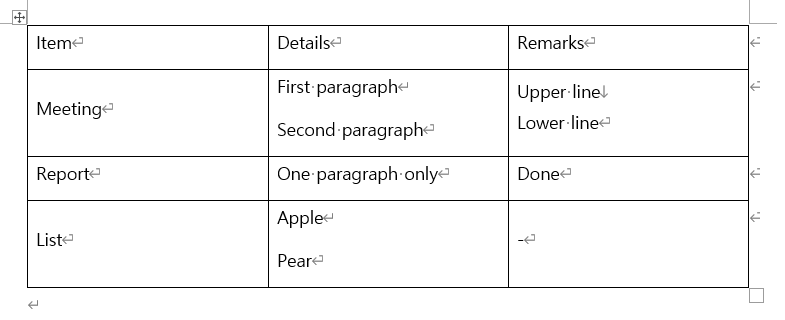
The test table had 3 columns and 4 rows. Three of its cells held two lines each, and the rest held one line.

A three-column, four-row Word table with formatting marks on, where three cells hold two lines each
A three-column, four-row Word table where three cells hold two lines each. Formatting marks are on: a bent arrow ends each paragraph, and the down arrow after Upper line is the Shift+Enter line break.

Pasting that Word table into Excel with a plain Ctrl+V produced six rows. Each two-line cell split into two rows, and the one-line cells in those rows came in merged to cover the split. The merged ranges were A2:A3, A5:A6 and C5:C6: three ranges, six cells in all.

The same Word table into Excel after Ctrl+V: six rows, with cells A2:A3, A5:A6 and C5:C6 merged to cover the split rows
The same Word table into Excel after Ctrl+V: six rows, with cells A2:A3, A5:A6 and C5:C6 merged to cover the split rows.

The merging is what covers the split. A row that only exists because the cell beside it broke in two has nothing of its own to hold, so the one-line cell spans both rows instead. Word’s second row held two of the multiline cells, so only column A was merged there; its fourth row held one, so columns A and C were both merged.

How it was pastedRows in ExcelMerged cells
Ctrl+V66
Paste Special, Unicode Text70
Markers in Word first, then Ctrl+V40

What that means on the sheet: one record from the Word table now occupies two rows, and the cell beside it is a single cell covering both of those rows.

Enter and Shift+Enter did the same thing

The two-line cells were not made the same way. Cell B2 held two paragraphs made with Enter, cell C2 held two lines made with Shift+Enter, and cell B4 held two paragraphs again. All three split into two rows in Excel.

So the split does not depend on which line break is in the cell. That is why step 2 above replaces ^p and ^l in two passes. Microsoft’s help page for this task mentions the extra rows in one sentence about extra carriage returns, quoted further down.

Pasting as Unicode Text was worse, not better

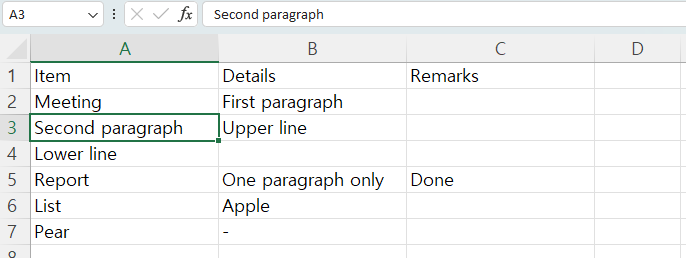
Paste Special is the obvious next thing to try, because dropping the formatting sounds like it would drop the merging too. It did. Paste Special with Unicode Text produced 7 rows and no merged cells at all. In Excel that option sits under Home, then Paste, then Paste Special.

The table came apart instead. The second line of each multiline cell moved into column A, at A3, A4 and A7, rather than staying under the column it came from. Losing the merged cells cost the column alignment.

The same table pasted as Unicode Text: seven rows and no merged cells, but the second lines sit in column A instead of their own columns
The same table pasted as Unicode Text: seven rows and no merged cells, but the second lines sit in column A instead of their own columns.

Neither paste route in this test put the Word table into Excel in four rows. What changed the outcome was the text in the Word document, not the paste format.

What the help page promises, and where it stops

Microsoft’s Copy a Word table into Excel page says: “Excel pastes the contents of each Word table cell into a single cell.” In this test the one-line cells did arrive that way, one cell each. The three two-line cells did not.

The page’s one line about rows is a warning before you copy: “Make sure there aren’t any extra carriage returns in the cells of the table, otherwise this may cause extra rows in Excel.” That sentence covers the extra rows.

The word merge does not appear on the page, so the merged cells that come with those rows are not described there. The Applies to list runs from Excel and Word for Microsoft 365 back to Excel and Word 2016, and the page shows no last-updated date; the test here covers one build.

A table copied out of ChatGPT or another AI chat is a different case. It arrives as text rather than as a Word table object, and what breaks there is the values rather than the rows, as in when a ChatGPT table pasted into Excel changes your numbers. The opposite direction, an Excel table that runs past the margin once it is in Word, is its own test: when an Excel table pasted into Word runs off the page.

How this was tested, and what wasn’t

The pastes first ran on September 29, 2026, at 11:32 Korea time, in Word 16.0.20326 and Excel 16.0 (build 20326) for Windows, with a Korean interface and Korean text in the table. They ran again on October 24, 2026, at 23:13 Korea time, for the pictures: the same build and the same Korean installation, but with the display language set to English and the same table written in English words. Both runs gave the same row counts, the same merged ranges and the same cell positions.

For the pictures, columns A to C were widened before each paste so the words fit. A run at the default column width a few minutes earlier gave the same rows, merged ranges and cell positions.

The Ctrl+V result was a real key press into the visible Excel window, with the window in front. The same paste through Excel’s automation interface gave the same six rows and the same merged cells. Paste Special and the Word replacement ran through that interface. In the October 24 run the marker paste was a real Ctrl+V as well, and the replacement in Excel and the row AutoFit ran through the automation interface.

There was one table, 3 columns by 4 rows, pasted into a new workbook at cell A1. It had no merged cells of its own, so a Word table that already contains merged cells may land differently.

Not tested:

  • A Word table that already has merged cells
  • Excel for Mac, Excel for the web and Google Sheets
  • An English-language Office installation
  • Find and Replace run by hand in Word’s dialog
  • Ctrl+J typed into Excel’s Replace with box
  • AutoFit Row Height chosen from the menu by hand
  • The SUBSTITUTE formula route
  • Pressing Ctrl+M after the paste
  • Several tables pasted in one go
  • What merged cells do to sorting and filtering

One thing to expect after the markers go back to line breaks: Excel switched line wrapping on for those cells by itself, but it did not change the row heights. These results are one installation, one build, one 3-by-4 table and three pastes, recorded on September 29, 2026 and repeated on October 24, 2026.

Paste multiple lines into one Excel cell: four ways and what each one did

To paste multiple lines into one Excel cell, open the cell before you paste: click it, press F2, then press Ctrl+V and Enter. Click the cell once and paste without opening it, and Excel reads every line break as a new row, so the lines land in separate cells going down the column.

On September 28, 2026, the same three lines went into Excel 16.0 (build 20326) on Windows four ways. Two put all three lines in one cell and two split them across three rows, and one of the two that split was Paste Special with Unicode Text. A real ChatGPT answer, pasted into a selected cell, took up 64 rows. The numbers below come from one installation, one build, one day, and one copied answer each from ChatGPT and Gemini.

Two ways to paste multiple lines into one Excel cell

Both ways to paste multiple lines into one Excel cell do the same thing: they put the cell into edit mode before the clipboard arrives.

  1. Click the cell once, press F2, then press Ctrl+V and Enter.
  2. Click the cell once, click in the formula bar, then press Ctrl+V and Enter.

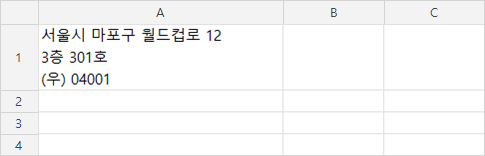
In this test both pastes put all three lines inside cell A1, one with the text open in the cell and one with it open in the formula bar. Excel also switched the cell’s line wrapping on by itself and set the row height to 49.5, so the three lines were visible without any formatting afterwards.

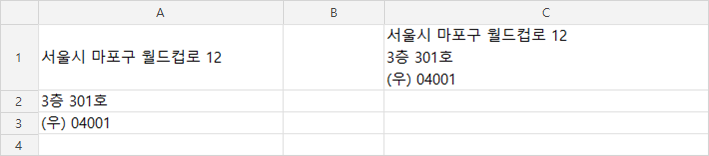
The same three lines all sitting in cell A1 as one wrapped entry, the cell state an F2 paste produced when you paste multiple lines into one Excel cell
All three lines in cell A1 as one wrapped entry, the cell state the F2 paste produced, with the row height fitted to them. This PC’s Excel is installed in Korean and the text in this picture is a Korean street address; what to look at is where the lines landed, not the words.

Here is what the four pastes did with the same clipboard.

How the lines were pastedWhere they landed
Cell selected, then Ctrl+VThree rows: A1, A2, A3
Paste Special, Unicode TextThree rows: A1, A2, A3
F2 first, then Ctrl+VOne cell: A1, three wrapped lines
Text open in the formula bar, then Ctrl+VOne cell: A1, three wrapped lines

The first row ran twice, once with LF line breaks on the clipboard and once with CRLF. Both split the same way.

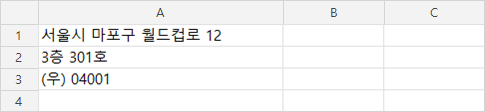
A three-line address pasted into selected cell A1 in Excel, spread across cells A1, A2 and A3
The same three lines pasted into the selected cell A1 instead: one line each in A1, A2 and A3. This is the one picture of an actual paste, made on September 30, 2026, in the same Excel.

Paste Special did not keep the lines in one cell

Paste Special is the next place to look, because it offers to drop the formatting and bring the clipboard in as plain text. In this test that changed nothing. Paste Special with Unicode Text put the three lines in A1, A2 and A3, the same cells a plain Ctrl+V used. In Excel that option sits under Home, then Paste, then Paste Special.

That result narrows the problem down. The split is not coming from the paste format, so no paste option fixes it. To paste multiple lines into one Excel cell, the thing to change is the cursor, not the format.

There is one other approach, which is to replace every line break in the text with a space before pasting. That does keep the text in one cell, by throwing the line breaks away. This test did not cover it.

Why a selected cell turns each line into a row

A selected cell tells Excel where to start putting rows. An open cell tells Excel where to put characters. With the cell selected, a line break in the clipboard means the next row, the way a tab means the next column. With the cell open, the same line break is one more character going into that cell.

Microsoft’s Edit cell contents page describes three ways into that open state, which it calls Edit mode: “Select the cell that contains the data you want to edit, and then press F2,” double-clicking the cell, or selecting anywhere in the formula bar. Whether the text then opens inside the cell or in the formula bar is set by the Allow editing directly in cells checkbox, under File, Options, Advanced. That page applies to Excel for Microsoft 365, Excel 2024 and Excel 2021.

The page is about editing, not about pasting, and it does not say what a paste into Edit mode does. That part is this test’s own result. To type a line break by hand instead of pasting one, the key is Alt+Enter.

One real ChatGPT answer landed in 64 rows

Three short lines are the easy case. The test also pasted two real AI answers into a selected cell, taken from the copy button in ChatGPT and in Gemini on September 19, 2026.

What was pastedRows usedEmpty rows
One ChatGPT answer, Ctrl+V6425
The same answer, Unicode Text6117
One Gemini answer, Ctrl+V312
The same answer, Unicode Text5720

Not one cell in those pastes held a line break. Every line went to its own row, and the empty rows are the blank lines between paragraphs in the answer. Changing the paste format changed how many empty rows appeared; it did not gather the lines into a cell either way. This test did not paste an AI answer into an open cell, so what a whole answer does in Edit mode is not measured here.

Pasted as Unicode Text, the Markdown in the answers came through as characters: asterisks around the bold words, hash marks in front of the headings, pipes between the table cells. The Markdown Remover takes those symbols out of copied AI text in the browser. It does not put the lines back into one cell, so for that part the answer is still to open the cell first.

A line break inside a table cell has a related edge. In a separate paste of a small HTML table built for this test, one cell carried its own line break. Excel put that cell’s two lines in two rows, B2 and B3, and left the rest of the table on its own row, so the columns no longer lined up. That did not happen with the two AI answers above, whose cells held no line breaks at all.

If what went wrong is the values rather than the layout, a leading zero gone or a size turned into a date, that is a different problem: see when a ChatGPT table pasted into Excel changes your numbers.

If the lines already landed in separate rows

If the text is still on the clipboard, the short way back is to clear those cells and paste multiple lines into one Excel cell again with F2. The formula below is for when the clipboard has moved on:

=TEXTJOIN(CHAR(10), TRUE, A1:A3)

CHAR(10) is the line break, and TRUE is the ignore_empty argument, which Microsoft’s TEXTJOIN function page describes as “If TRUE, ignores empty cells.” That page applies to Excel for Microsoft 365, Excel 2024 and Excel 2021, each of those also for Mac, plus Excel 2019 and Microsoft365.com. Excel 2016 is not on the list. For that version the same join is =A1&CHAR(10)&A2&CHAR(10)&A3. It produced the same cell contents in this test.

Then comes the part that looks like a broken formula. The join is correct, but the result showed as one long line, because Wrap Text did not switch on by itself the way it did after the F2 paste. The row height stayed at 16.5.

A TEXTJOIN formula in cell C1 joined cells A1 to A3, but the result shows as one long line because Wrap Text is off
The TEXTJOIN result in C1 reads as one long line while Wrap Text is off, even though the line breaks are in the cell.

Turn Wrap Text on for that cell and fit the row height, and the three lines appear. Here the row went to 49.5.

The same TEXTJOIN result in cell C1 with Wrap Text turned on and the row height fitted, showing all three lines
The same cell with Wrap Text on and the row fitted: C1 shows the three lines that A1, A2 and A3 hold separately.

The joined cell is a formula, so it empties when the cells it reads are deleted. Copy it and paste it back as values first. In this test the pasted-value copy still held all three lines after A1 to A3 were cleared.

How this was tested, and what wasn’t

The pastes ran on September 28, 2026, in Excel 16.0 (build 20326) for Windows. The installation’s interface is Korean and the test text is Korean too. In the pictures the three lines are a street address, and the point is where the lines landed. The pictures were made on September 30 in the same Excel: the picture of the split rows is an actual paste, and the other three reproduce the cell states the test recorded.

Two of the four pastes were real key presses into the visible Excel window, the F2 paste and the formula bar paste. The formula bar paste was run by turning off Allow editing directly in cells and pressing F2, which opens the text in the formula bar. Clicking in the formula bar with the mouse was not tested.

The selected-cell paste and Paste Special went through Excel’s automation interface, taken to be the same path a Ctrl+V uses. The AI answers were one copied answer each, so a different answer gives a different number of rows.

Not tested:

  • Double-clicking a cell instead of pressing F2, which Microsoft lists as the same Edit mode
  • Clicking in the formula bar with the mouse, the third route Microsoft lists
  • Excel for Mac, Excel for the web and Google Sheets
  • Excel 2016 and Excel 2019
  • Pasting a whole AI answer into an open cell
  • A key-pressed Ctrl+V into a selected cell
  • An English-language Excel installation

The gap worth keeping in mind runs between the two halves of this test: a cell opened with F2 came back with its line wrapping already on, and a cell filled by a formula did not. Both results are from one installation on one day, four pastes, and one copied answer each from ChatGPT and Gemini.

What you actually get when you paste ChatGPT into Word

Paste ChatGPT into Word with a plain Ctrl+V and most of the answer arrives as Word features. In four pastes on one PC, the bulleted lists came in as Word lists, the numbered steps kept their numbers, the tables came in as real Word tables, the links stayed clickable and the bold phrases stayed bold. No Markdown symbols were visible in any of the four documents.

One thing did not arrive: heading styles. The lines that read as headings came in as bold body text, so Word does not treat them as headings at all. That is the main thing to fix by hand, and three smaller ones follow it.

The four pastes were made in Chrome on September 19, 2026, into new Word 2021 documents on Windows 11: one answer each from ChatGPT and Gemini, copied two ways. The answers and this PC’s Word are in Korean, and this PC’s paste setting is not the one Microsoft documents as the default. Both are spelled out at the end.

What survives a plain Ctrl+V

Here is what the four documents held, element by element. Each case was pasted once, so this is what this test saw rather than a rule.

  • Bulleted lists: Word bullets, with the line breaks inside a single item kept.
  • Numbered steps: Word numbering, with the numbers in order.
  • Tables: real Word tables. The ChatGPT table arrived with no borders, the Gemini one with borders, 4 rows by 3 columns.
  • Links: live hyperlinks, still clickable — except in the dragged ChatGPT paste, where the three source links inside the table cells were missing and the one link in the running text came through.
  • Bold: still bold.
  • Headings: bold body text. Only one of the four documents was read out of Word rather than read on screen, and in that one no heading style had been applied anywhere.
  • Code and configuration samples: ordinary paragraphs in the body font, with the two-space indents intact.
  • Block quotes: no quote formatting at all. In one document the quoted line arrived as bold text instead.

Not one of the four pastes put a Markdown symbol on the page. Hash marks do appear inside one of the documents, but those are comments in a YAML sample, which is content rather than something left over from the copy. The longest of the four answers came to 536 words over three pages.

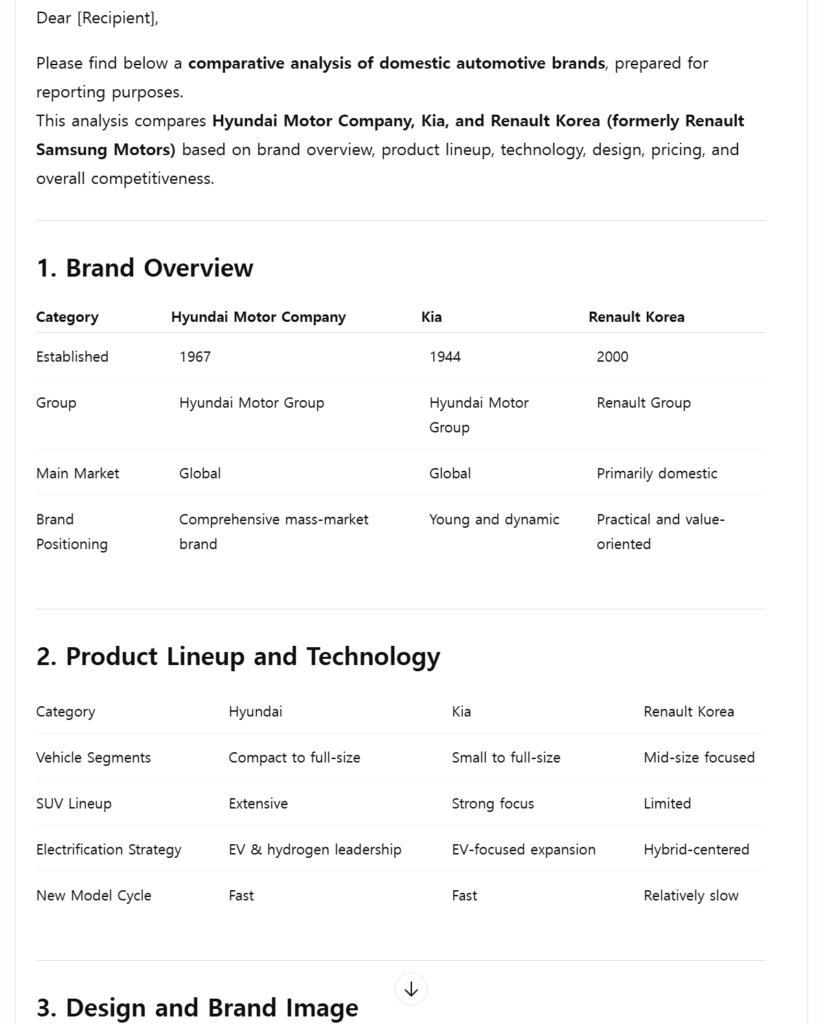
What you get when you paste ChatGPT into Word two ways: the copy button on the left and a dragged selection on the right, both showing a borderless table and bold heading lines, with the blue source links inside the table cells present only on the left
Two ways to paste ChatGPT into Word, September 19, 2026: the copy button on the left, a dragged selection on the right. The answer and this PC’s Word are in Korean, so what to look at is the structure, not the words.

One copy carries two versions of the answer

A single copy from a chat carries the answer twice, once as formatting and once as plain text. The plain-text version is the Markdown, hash marks and asterisk pairs and pipe table included. Which of the two lands in your document is decided by how you paste, not by the chat.

Word’s four choices are Keep Source Formatting, Merge Formatting, Picture (Microsoft 365 only) and Keep Text Only. Microsoft lists them on its Control the formatting when you paste text page, along with the settings behind them in File > Options > Advanced > Cut, copy, and paste. Paste ChatGPT into Word with one of the first three and the formatted version is in play. Choose Keep Text Only and the plain-text version is what lands.

In an earlier automated run with a different ChatGPT answer, the captured clipboard pasted as text only showed hash marks on six heading lines, 32 double asterisks around the bold phrases, and the table as five lines of pipe characters. That document had no Word table and no live link left in it at all. The run was pasted by a script rather than by hand.

A different ChatGPT answer pasted into Word as text only, with hash marks in front of the heading lines, double asterisks around the bold phrases and an asterisk at the start of a list item
A different ChatGPT answer, pasted into Word as text only: the hash marks in front of the heading lines, the double asterisks around the bold phrases and the asterisk bullet all show up as characters. This is the captured clipboard pasted by a script on September 19, 2026.

That plain-text version is the one you want when the destination only takes text, like a messenger box, a plain note or a form field. The Markdown Remover strips those symbols in the browser before you paste. It strips the formatting with them, so when the point of the paste is to get the lists, the table and the links into a Word document, there is no reason to send the answer through it.

Headings arrive as bold text, not heading styles

On screen the heading lines look like headings: they sit on their own line and they are bold. Word does not see them that way.

One of the four documents was read out of Word directly, through Word’s own automation, while the file was still open. All 42 of its paragraphs carried the Normal style. There was no Heading 1, Heading 2 or Heading 3 anywhere in it, although five of its lines were sitting there acting as headings. The rest of the structure was real: 8 list paragraphs, a bordered 4-by-3 table and one live hyperlink.

Microsoft’s Use the Navigation pane in Word page states the condition. If you have applied heading styles to the headings in the body of your document, those headings appear in the Navigation pane, which opens with Ctrl+F or from the View tab. In this document no heading style had been applied to anything, so those bold lines are not headings as far as Word is concerned. When you paste ChatGPT into Word, heading styles are the one piece of structure you put back yourself.

Four things to fix after you paste ChatGPT into Word

The first one is the one that matters in every document. The other three depend on how you copied and what the document is for.

  1. Apply Heading 1 and Heading 2 to the lines that are acting as headings. Click in the line and pick the style from the Styles gallery on the Home tab. Those lines then show up in the Navigation pane, which is also the fastest way to see whether you got them all.
  2. Put the code and configuration samples into a monospaced font. They arrive as plain body-font paragraphs. The indentation itself survived in this test, two leading spaces and all, so what is missing is the font rather than the structure.
  3. If you copied by dragging the selection, check the top of the document and the inside of the table. In this test the dragged ChatGPT answer repeated its first heading line, and the three source links that sat inside the table cells were not there.
  4. If the document is going to be printed, look at the table borders. The ChatGPT table came in without any, which is easy to miss on screen and obvious on paper.

If what you are pasting is an Excel table rather than a chat answer, the thing that usually breaks is width instead of styles. When an Excel table pasted into Word runs off the page covers that case.

The copy button, dragging, and Gemini’s blank lines

For ChatGPT the two copy methods were nearly the same. The copy button gave three pages and 536 words, the dragged selection three pages and 535. The two differences are the ones in the list above: the repeated heading line and the source links missing from inside the table.

For Gemini the two methods differed in spacing. The copy button version carried a blank line after each heading line and after every list item, and ran to three pages. The dragged version of the same 255-word answer had none of those blank lines and fit on two. An earlier automated run with a different Gemini answer also produced blank paragraphs after list items, so that is two sightings, both on this PC on this day.

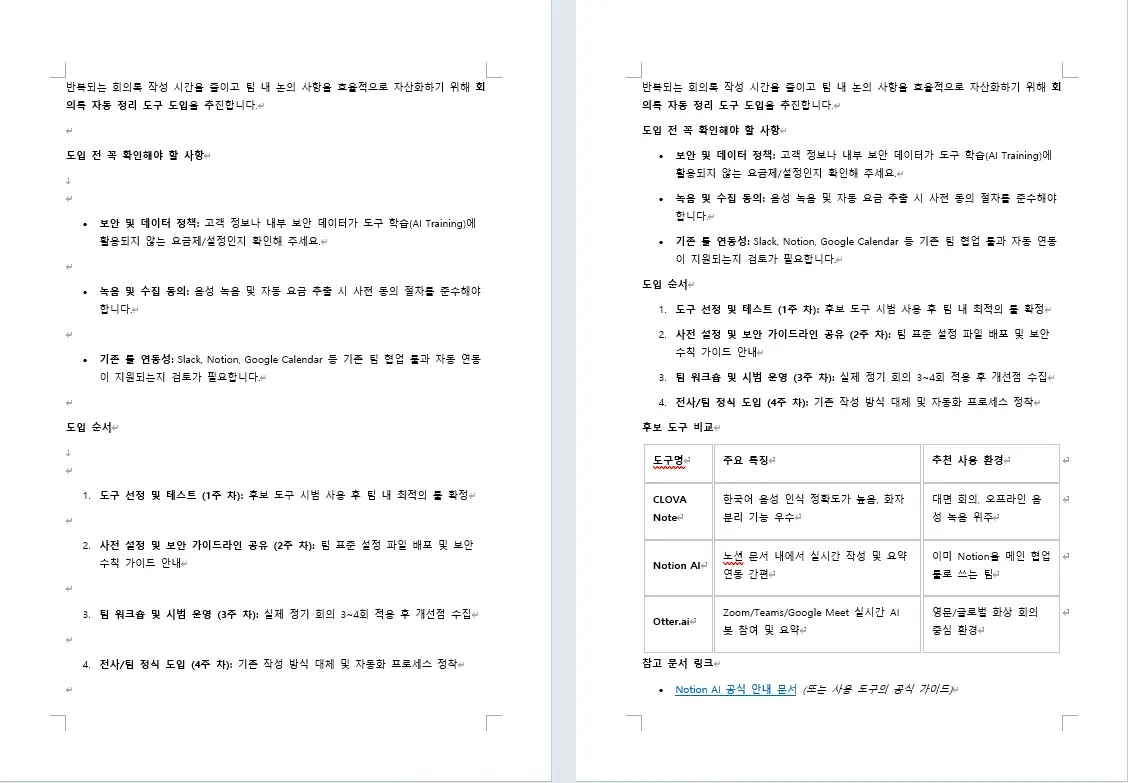
A Gemini answer pasted into Word two ways: the copy button version on the left has a blank line after every bulleted and numbered item, and the dragged version on the right is tighter and shows a bordered table and a live link
A Gemini answer pasted into Word two ways on September 19, 2026: the copy button version on the left has a blank line after every list item, the dragged version on the right does not and ends up a page shorter. The answer and this PC’s Word are in Korean.

These are four results, one paste each. They are not a ranking of the two copy methods or of the two chats.

How this was tested, and what wasn’t

The pastes were made on September 19, 2026, in Chrome on Windows 11, into new blank documents in Word 2021 (16.0, build 20326). One answer each from ChatGPT and Gemini, each copied twice, once with the chat’s own copy button and once by dragging the selection. The model and the plan behind each answer were not recorded.

The answers were written in Korean, and the Office interface on this PC is Korean, so the option names above are the English names from Microsoft’s documentation. Microsoft’s paste page also says that by default Word preserves the original formatting when you paste with Ctrl+V, the Paste button, or right-click and Paste. This PC is not set that way. Its Pasting from other programs option was set to Merge Formatting. Check yours in File > Options > Advanced > Cut, copy, and paste before you expect the same result.

Two of the observations above did not come from a hand-pressed Ctrl+V. The 42 paragraphs and the Normal style were read out of the open document through Word’s automation, which only read and changed nothing. The text-only paste came from a separate automated run in which the clipboard captured from the copy button was pasted by a script.

Not tested:

  • A hand-pressed Ctrl+V in a Word left at the default paste setting
  • Answers in English, or Word with an English interface
  • Claude, or any chat other than ChatGPT and Gemini
  • Word for Mac, Word for the web, and Google Docs
  • ChatGPT’s canvas export to a .docx file
  • Asking the same question again to see whether a second answer behaves the same way
  • Pasting into Word through the Markdown Remover
  • Justified text, and the word breaks that come with it

Applying the heading styles right after the paste is worth the minute it takes. The Navigation pane becomes a map of the document from that point on, and the headings are ordinary Word headings rather than bold lines you have to recognize by eye.

All of this is four pastes, on one PC, on one day. It is a record of what happened, not a promise about what you will get when you paste ChatGPT into Word on yours, so read the date along with the result.

Paste from Markdown in Google Docs: what converted in this test

An AI answer pasted into a document often arrives with its characters intact. One line reads ## Decisions instead of becoming a heading, **Friday afternoon** keeps its asterisk pairs, and the table is a block of pipe characters. Deleting all of that by hand is one way through the document. The other is Paste from Markdown in Google Docs, a right-click entry that shows up after one box is checked under Tools > Preferences. It takes the same clipboard text and reads the characters instead of printing them.

On October 4, 2026, the same Markdown text went into two documents on a personal Google account in Chrome. The first paste was a plain Ctrl+V. The second used Paste from Markdown, and that document had no Markdown characters left on the page at all. It also had a 3×3 table and a numbered list two levels deep, neither of which appears on the official list of supported syntax. One thing did not convert: the code block.

Turn on Enable Markdown before you paste

Paste from Markdown is not in the right-click menu until Markdown is turned on for the editor. Three steps:

  1. In Google Docs, open Tools > Preferences.
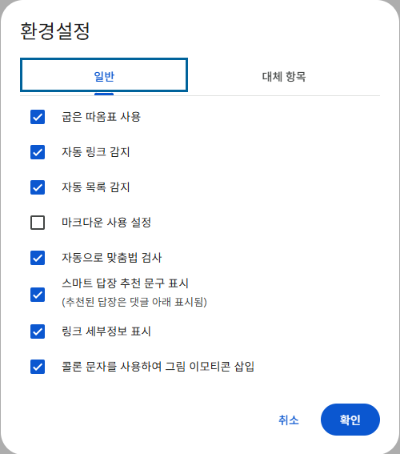
  2. On the General tab, check Enable Markdown and click OK.
  3. Right-click in the document body and choose Paste from Markdown.
Google Docs Preferences dialog with the Enable Markdown checkbox unchecked while automatic list detection is checked
The Enable Markdown box has to be checked before Paste from Markdown appears in the menu. On this account it was unchecked on October 4, 2026, while automatic list detection was on. This is Google Docs in Korean; the English option names here come from Google’s English help page.

On this account the box was unchecked when the test started. That is what the test found, not a claim about every account. For the default there is an official sentence: Google’s 2024 announcement Import and export Markdown in Google Docs says the Copy as Markdown and Paste from Markdown options are off by default and can be enabled under Tools > Preferences > Enable Markdown.

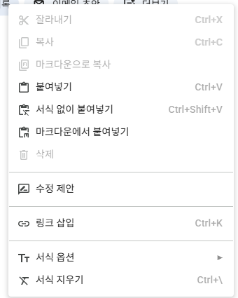
Google Docs right-click menu showing the Paste from Markdown option below Paste without formatting
After the box was checked, the right-click menu showed Paste from Markdown below Paste without formatting, with Copy as Markdown higher up the same menu.

That is the answer for anyone who looked for the menu entry and could not find it. The menu was not opened with the setting off in this test, so “it shows up only once the setting is on” rests on the official sentence above rather than on a screenshot.

A plain Ctrl+V left every Markdown character as text

The first path is the default one, taken before Paste from Markdown is on the menu at all: setting off, Ctrl+V. The text on the clipboard held three heading levels, bold, italic and strikethrough, a numbered list nested two levels deep, two bullet lines, a 3×3 table, a code block and a link. None of it became formatting in the document.

The same Markdown text pasted with a plain Ctrl+V, with hash marks, asterisk pairs and pipe characters left as plain text
The same text pasted with a plain Ctrl+V while the setting was off. Hash marks, asterisk pairs, the pipe-character table rows and the backtick fences are all still plain text.

Automatic list detection was switched on in the same Preferences dialog, and the 1. and - lines still did not become lists. That is an easy one to assume the other way around, since a list looks like the one thing an editor would catch by itself.

Counted in the exported file: three lines beginning with hash marks, one ** pair, one ~~ pair, four table rows made of pipe characters, two backtick fence lines, and one bracketed link address.

Why an AI answer carries these characters in the first place is a separate question, and this test does not answer it. Another page covers why the characters are worth clearing out of an AI answer.

What Paste from Markdown converted in this test

The second path used the same clipboard text, with Enable Markdown checked and Paste from Markdown chosen from the right-click menu. Nothing was left behind as a character.

ElementPlain Ctrl+VPaste from Markdown
Three heading levelsHash marks left as textHeading 1, Heading 2, Heading 3
Bold, italic, strikethroughAsterisks and tildes left as textAll three applied as formatting
LinkBrackets and address left as textA working hyperlink on the link text
Markdown characters leftEvery kind, still as textNone

The headings matched the number of hash marks, so a three-level outline came through as Heading 1 through Heading 3. Bold, italic and strikethrough were all applied. The link text carried a real hyperlink to its address. This is one run of one input on October 4, 2026, on one personal account.

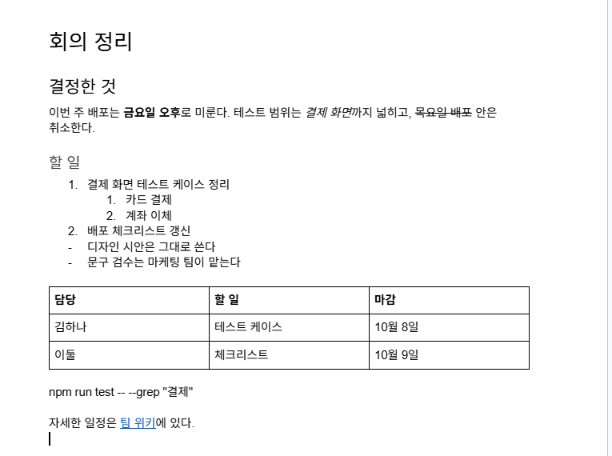
Paste from Markdown result in Google Docs: three heading levels, bold, italic, strikethrough, a two-level numbered list and a 3x3 table
The same text pasted again with Paste from Markdown: three heading levels, bold, italic and strikethrough, a two-level numbered list, a 3×3 table and a hyperlink. The code line sits in the middle as an ordinary paragraph. The document content is the Korean test input.

The official list doesn’t mention tables or nested lists

If the answer you pasted has a table or a numbered list in it, the official page does not say what becomes of them. Google’s help page on using Markdown in Docs gives the supported syntax as italics, bold, strikethrough, links and headings. Tables, nested lists and code blocks are not on that list. The page was opened again on October 9, 2026 to check, and it carries no “last updated” date.

In this test Paste from Markdown converted them anyway. The 3×3 pipe table came out as a real table object, the numbered list kept both of its levels, and the two bullet lines became bullets. Why items absent from the official list converted is not something two pastes can answer.

The code block lost its backticks but didn’t become code

Paste from Markdown did not convert everything. The backtick fences around the code block were gone, but the command line between them arrived as an ordinary paragraph: Normal style, no monospaced font, no code block. After pasting, that is the one part still worth fixing by hand.

If what you actually want is the characters gone rather than turned into formatting, the Markdown Remover strips them out of the text instead. In its output a code block keeps its lines, with a [Code] label in front of them.

How this was tested, and what wasn’t tested

The test ran at about 1 a.m. on October 4, 2026, in Chrome on Windows, signed in to a personal Google account rather than a Workspace account. The input was one set of Markdown meeting notes containing three heading levels, bold, italic, strikethrough, a numbered list nested two levels deep, two bullet lines, a 3×3 table, a code block and a link. It went onto the clipboard as plain text, the same as copying out of a text editor. Both documents were then exported as .docx files and opened in Word to check heading levels, list nesting, table and link objects, and the characters left on the page.

The Docs interface and the pasted notes were both in Korean. The English option names used above are the ones on Google’s English help page.

Not tested:

  • A plain Ctrl+V with Enable Markdown switched on. Path 1 had the setting off, path 2 used Paste from Markdown from the menu, so that combination is outside this test.
  • Typing Markdown straight into a document. The automation got tangled with the Korean input method, which is a limit of the test setup, not of Google Docs.
  • Opening a .md file through File > Open. The file picker sits in a frame the automation could not reach; a person can do it in a minute.
  • Workspace accounts, mobile, Safari and Google Slides.

One practical note: the setting goes back off as easily as it went on. After this test the box was unchecked again, and Preferences was reopened to confirm it had stayed off. Whether leaving it on changes anything about other pastes was not measured. Each path above ran once, with one input, on one account, on October 4, 2026.

What to check when you ask ChatGPT for an Excel file

When you ask ChatGPT for an Excel file, the download is only half the job. In this test the answer came back with a file card, and the preview pane that opened before the download showed the employee ID as 7 instead of 007, the phone number without its leading zero, and a 16-digit order number as 1.23457E+15. The file looked broken before it had been saved.

The thing to judge is the downloaded file, not the pane. On October 3, 2026 the same table went to ChatGPT, Claude and Gemini once each, and all three returned an .xlsx on the first request. Opened in Excel, all 24 cells in all three files held what was expected: 007 stayed text, the order numbers kept all 16 digits, the hire dates arrived as date values. That was one table, one request each, three paid or work accounts, and a table written in Korean. The values that did change came from the paths that were not a file.

When you ask ChatGPT for an Excel file, check these five cells

Open the download and read these cells before anything else. They are the cells where the tool had to make a format decision, and they are what this test measured.

  1. Cells with a leading zero: employee IDs such as 007 and 0123, and a phone number written as 01098765432.
  2. Cells that can be read as a month and a day, such as 1-2 or 3-4. They should still be those characters.
  3. Reference numbers of 16 digits. Excel holds numbers to 15 digits, so check the last one.
  4. Cells that start with an equals sign. They should be words, not a formula and not an error.
  5. Cells that hold two lines. The break belongs inside the one cell.

Then look the other way. Hire dates, salary amounts and percentage rates should be values rather than text, because those are the cells that get sorted and added up.

A file carries the format along with the value, so each cell arrives labeled as text, a date or a number. A table moved off the screen carries only what the screen showed, and the receiving program guesses again. A pane that looks wrong is not a reason to delete the file and ask again.

All 24 cells in the three downloaded files were as expected

The one thing to read from this table: all three files held 007 as text and kept every digit of the order numbers.

ToolAccount tested24 cells
ChatGPTProAll 24 as expected
ClaudeMaxAll 24 as expected
GeminiGoogle Workspace work accountAll 24 as expected

That is one request per service, sent once on October 3, 2026, against one table of three rows and eight columns. The free plans were not tested.

ChatGPT’s answer said it had handled the ID, phone, order number and note columns so they would not be auto-converted, and had given the hire date, salary and performance rate columns an Excel format. Claude’s answer listed the columns it had kept as text and noted that 8% would display as 8.0%. Gemini’s answer added an average row at the bottom that the request had not asked for; the 24 cells were unaffected by it, and that is what Gemini did in this run.

The preview pane showed different values than the file

The pane that opens when you ask ChatGPT for an Excel file and click the file card, before the download, is not the file. In this test it showed the employee IDs as 7 and 123, the phone number as 1098765432 and the order number as 1.23457E+15. The downloaded file held 007, 0123, 01098765432 and all 16 digits, every one of them as text.

The preview pane that opens when you ask ChatGPT for an Excel file, before the download — the employee IDs read 7 and 123, the phone number reads 1098765432 and the order number reads 1.23457E+15
The preview pane in ChatGPT, open before the download. Captured October 3, 2026. The test table and this PC’s interface are in Korean; the values shown are the ones being checked.
The ChatGPT .xlsx file opened in Excel after the download — employee IDs 007 and 0123, the phone number 01098765432 and three 16-digit order numbers kept as text, hire dates as dates, and a two-line note inside one cell
The same ChatGPT file after the download, opened in Excel. 007, 0123, 01098765432 and the 16-digit order numbers are stored as text (the green corner marks), the hire dates are dates, and the two-line note stays in one cell. Captured October 11, 2026 from the file downloaded October 3; the table and this Excel installation are in Korean.

Why the pane displayed those values was not tested. It is a viewer, so download the file and read the cells in Excel.

Sending the same table to Google Sheets changed six or seven cells

The two paths below started from a different request. Instead of a file, it asked for the table to be shown as a table on screen, and that table was then moved into Google Sheets. Each path ran once, on October 4, 2026.

Exporting Gemini’s table with Export to Sheets changed 7 of the 24 cells. The leading zeros went first: 007 became 7, 0123 became 123, and the phone number lost its leading zero. Then 1-2 and 3-4 became date values, the note starting with an equals sign turned into an error, and the two lines in one cell were joined into one. That error reads #ERROR! on the Sheets screen; download the same sheet as .xlsx, open it in Excel, and the cell reads #NAME? instead.

Gemini's table moved into Google Sheets with Export to Sheets — the leading zeros are gone from the employee IDs and the phone number, the notes 1-2 and 3-4 sit right-aligned, the two lines of one cell are joined into one line, and one cell shows #ERROR!
Gemini’s table after Export to Sheets. Captured October 4, 2026 in the separate test with the different request; the screen is in Korean.

Copying the ChatGPT answer with the button under it and pasting into a new Google Sheet changed 6 of the 24 cells, the same ones. Two things survived that path: the two lines stayed inside one cell, and the columns split correctly instead of landing in a single column.

The table copied with the button under the ChatGPT answer and pasted into a new Google Sheet — the columns split correctly and the two lines in one cell survived, but the leading zeros are gone and one cell shows #ERROR!
The same table copied with the button under the ChatGPT answer and pasted into a new Google Sheet. Captured October 4, 2026, same separate test; the screen is in Korean.

When you ask ChatGPT for an Excel file, the format travels with the value; both paths above started from a table on the screen instead.

If you are copying an answer’s text instead, the Markdown Remover has a Copy table for Excel button that turns Markdown table rows into tab-separated cells. It does not stop a spreadsheet’s conversions, so the five cells above still need a look.

How this was tested, and what was not

The three requests went out between 10:04 and 10:06 p.m. Korea time on October 3, 2026, in Chrome on one Windows PC. The accounts were ChatGPT Pro, Claude Max and a Gemini Google Workspace work account. ChatGPT showed no model name and the reasoning setting in its composer read High, left at the default; Claude ran Opus 5.5; Gemini’s model selector was on its thinking model, also left at the default. Claude’s code execution and file creation setting was already on and was not changed. Each service got a new conversation with the same request pasted once, and no follow-up.

The three files were 5,213, 5,600 and 5,800 bytes, each with a Korean file name. They were read with Excel 16.0 build 20326 on a Korean (ko-KR) installation, and each of the 24 cells was compared against its stored value, its displayed value and its number format.

The evidence is Korean. The request, the header row, the names and the notes in the test table are Korean, the Excel install is Korean, and all four pictures show Korean text. The cells being checked do not depend on the language, but the test was not repeated with an English table or an English installation of Excel.

Two official pages sit next to this test without being part of it. Anthropic’s Create and edit files with Claude page says code execution and file creation is available to all Claude users, Free through Enterprise, and lists .xlsx among the formats Claude can create; the page is marked Last Updated August 6, 2026, and it was checked again on October 9, 2026. Google’s file generation announcement for the Gemini app, dated April 29, 2026, lists XLSX among the formats and says the feature is available to all Gemini app users globally.

Those are statements of availability, not results. For ChatGPT, no official page on downloads by plan was checked, so the only claim made about it here is that the account used was Pro.

Not tested:

  • What a free account returns when you ask ChatGPT for an Excel file
  • Failed downloads and broken file links
  • The same request sent again, or a different table
  • An English table, or an English installation of Excel
  • Excel for Mac, Excel for the web, Numbers, and opening the files in Google Sheets
  • Pasting an answer’s text straight into Excel
  • Why the preview pane displayed different values

One run is not a general advantage. The request used here said nothing about formatting; it asked for the table as an .xlsx that could be downloaded. Each of the three answers still said which columns it had protected from auto-conversion and which ones it had given an Excel format. The next time you ask ChatGPT for an Excel file, that list is the short version of which cells the tool decided something about. These results are one table, one request, three paid or work accounts, October 3, 2026.

When an Excel table pasted into Word runs off the page

You paste an Excel table into Word, and the right side of it disappears past the margin. It happens most with work tables whose columns were set wide in Excel, like a Task or Notes column with room for a whole sentence.

If the table is already in your document, click inside it and choose AutoFit Window from the Table Layout tab. If you can paste it again, choose Use Destination Styles from the Paste Options button. Word didn’t make the table bigger. It kept the column widths the table already had in Excel.

Already pasted? Use AutoFit Window

Already pasted the Excel table into Word? There’s no need to delete it and start over. Three steps on the table you have will do it.

  1. Click anywhere inside the table.
  2. Open the Table Layout tab on the ribbon.
  3. Select AutoFit, then AutoFit Window.

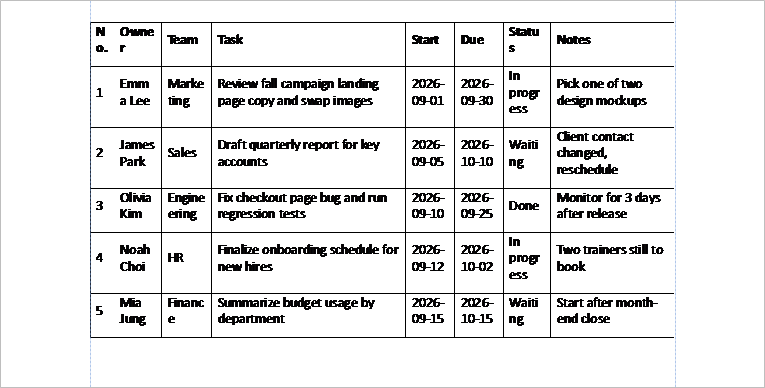
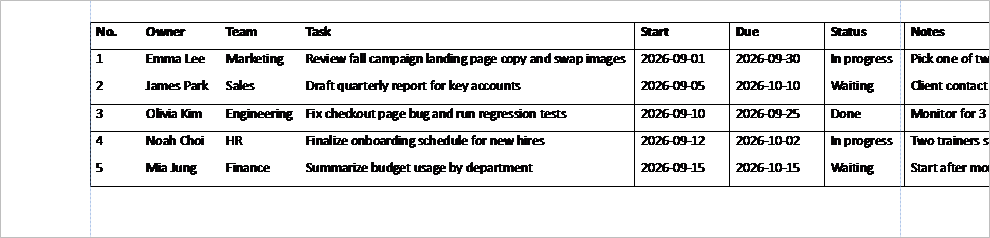
On the overflowing table in this test, those three steps took it from 860pt to 467.5pt wide, just inside the 468pt the page had room for. AutoFit is a regular Word table feature, covered in Microsoft’s Resize a table, column, or row help page.

After AutoFit Window the Excel table fits the Word page, but narrow columns break words mid-word
After AutoFit Window, the table fits inside the margins of the Letter page. The narrowest columns now break words in the middle: Owne / r, Marke / ting, Statu / s.

The fit came at a cost in this render. The narrow columns broke words partway through, and rows grew to two or three lines. That’s what one page render showed, not something measured across many tables.

AutoFit Contents, in the same menu, gave the same 467.5pt in this test.

Pasting again? Use Destination Styles

If you haven’t pasted the Excel table into Word yet, or you can delete it and paste again, the Paste Options button saves a step. Paste the table first. Then click the Paste Options button that appears next to it and choose Use Destination Styles.

The same table came in at 467.5pt and fit the page. Microsoft’s Copy from Excel to another Office program page says this option is usually the best way to paste if you want to keep the gridlines.

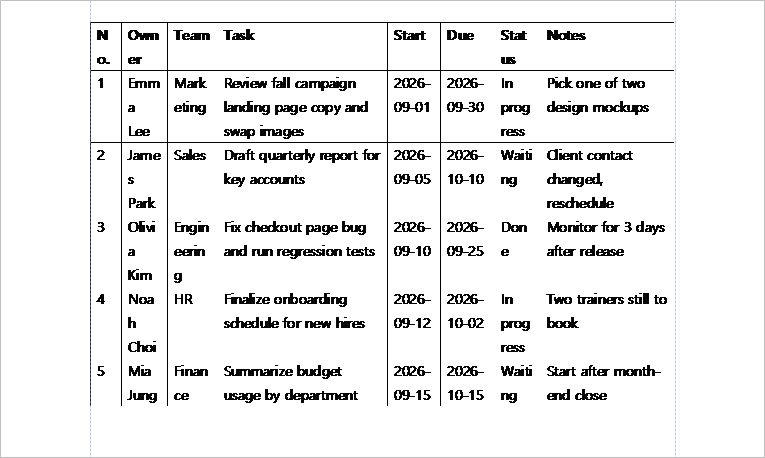
Excel table pasted into Word with Use Destination Styles fits the page width, with names wrapped onto several lines
Pasted with Use Destination Styles, the table fits the page width. Names in the narrow Owner column wrap onto several lines.

Both fixes ended at the same width, and both left narrow columns breaking words. In this test, Use Destination Styles broke names into more pieces (Emm / a / Lee) than AutoFit Window did.

Why an Excel table into Word runs wide

The column widths travel with the copy. The test table had 8 columns that added up to 858pt in Excel. Pasted into Word, it measured 860pt. A US Letter page with 1-inch margins leaves 468pt for text, so 392pt of table had nowhere to go.

So the extra width came from Excel, not from Word. When you paste an Excel table into Word with Keep Source Formatting, Word keeps the widths it receives and doesn’t shrink them to fit the page. Going the other way has its own problem: when a Word table is pasted into Excel, a cell that holds two lines splits into two rows.

How it was pastedTable widthResult
Keep Source Formatting860pt392pt wider than the page allows
Keep Source, then AutoFit Window467.5ptFits
Keep Source, then AutoFit Contents467.5ptFits
Use Destination Styles467.5ptFits
Keep Source on a landscape page860ptStill 212pt too wide
Picture468ptFits, but the text can’t be edited
Keep Text OnlynoneNo table, just 6 tab-separated paragraphs

On this PC, a plain Ctrl+V gave the same result as Keep Source Formatting. That was checked in an earlier run on A4 paper. If the Pasting from other programs default has been changed in Word’s options, Ctrl+V may paste differently.

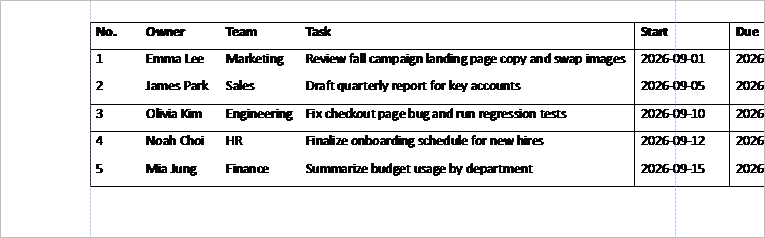
Pasting an Excel table into Word with Keep Source Formatting: the table runs past the right margin of a US Letter page, cut off from the Due column
Keep Source Formatting: the table runs past the right margin of a Letter page and is cut off at the page edge from the Due column.

In inches, the table was about 11.9 inches wide on a page with 6.5 inches of room. About 5.4 inches hung off the side.

Not every Excel table into Word overflows. A table whose columns add up to less than 6.5 inches fits on this page as it is. This one had two wide text columns, Task and Notes.

Turning the page sideways isn’t enough

Switching the page to landscape sounds like the obvious fix. On a landscape Letter page with the same margins, the usable width grows to 648pt, or 9 inches. The table was still 212pt too wide, and the Notes column was cut off.

The same pasted Excel table on a landscape Letter page still runs off the page, cut off at the Notes column
The same table on a landscape Letter page still runs past the right margin and is cut off at the Notes column.

On Letter paper, landscape only helps if the table is under 9 inches wide. This one was almost 12. For a table like this, use one of the two fixes above.

Picture or Keep Text Only

The Paste Options list has two more choices, Picture and Keep Text Only. Picture shrank the table to 468pt, exactly the width between the margins, but it became an image. You can’t edit the cells, and the text was tiny.

Excel table pasted into Word as a picture fits the page width but the text becomes very small
Pasted as a picture, the table fits the page width, but the text becomes very small.

Keep Text Only drops the table completely. The same table became six paragraphs with tabs between the cell values, which matches Microsoft’s description of the option.

That’s also why AutoFit can seem to be missing. If you click inside what looks like a table and no Table Layout tab appears, it’s probably a picture or tab-separated text, not a table.

Tables copied from ChatGPT or another AI chat are a different case. The copied text can carry Markdown symbols instead of Excel column widths. The Markdown Remover has a Copy table for Excel button that turns them into cells you can paste into Excel first.

How this was tested, and what wasn’t

The test ran on October 2, 2026, with Excel 16.0 (build 20326) and Word 16.0.20326 for Windows. The Office interface on this PC is in Korean, so the option names here are the English names from Microsoft’s documentation.

The table had 8 columns and 6 rows (No., Owner, Team, Task, Start, Due, Status, Notes) in Calibri 11, with a bold header row and borders. It was pasted into a new US Letter document with 1-inch margins and Calibri 11 as the body font. Width here means the sum of the cell widths in the first row, plus the table’s left indent.

The page images are Word’s own render of the printed page, not screenshots. The dashed blue lines mark the left and right margins.

Not tested:

  • Pressing Ctrl+V on the Letter page itself (the Ctrl+V result above comes from the earlier A4 run)
  • Word for Mac and Word for the web
  • The two linked paste options
  • Dragging column borders, a smaller font, or smaller cell margins to stop the word breaks

These numbers come from one table on one PC. In a first run with a different font in the Excel cells, the same table pasted at 892.4pt instead of 860pt, so expect yours to differ somewhat.

If you’re not sure how a table was pasted, AutoFit Window is safe to try. In the earlier A4 run, applying AutoFit to a table that already fit didn’t make it any wider.

When a ChatGPT table pasted into Excel changes your numbers

You paste a ChatGPT table into Excel and some values are no longer what ChatGPT wrote. Employee ID 007 becomes 7, a ZIP code loses its leading zero, a size like 3-4 turns into a date, and a 16-digit order number shows up as 1.23457E+15.

The fix is to set the columns to Text before you paste the ChatGPT table into Excel. If you’ve already pasted, changing the format afterwards won’t bring the values back, so paste again into the Text columns. ChatGPT didn’t change anything. The copied text still had every value exactly as it appeared in the chat; Excel converted them as it read the paste.

Before you paste a ChatGPT table into Excel, set the columns to Text

  1. Select the columns you’re about to paste into by clicking their letters, for example A to F.
  2. On the Home tab, open the number format list (it usually says General) and choose Text.
  3. Click the first cell and paste.

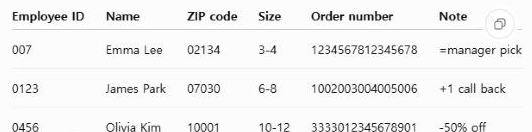
With the columns set to Text, every value in this test came through unchanged: 007, 02134, 3-4, all 16 digits of 1234567812345678, and =manager pick as plain words. Microsoft’s Stop automatically changing numbers to dates page gives the same advice: preformat the cells as Text.

Pasting a ChatGPT table into Excel after formatting the columns as Text keeps 007, 02134, 3-4, the full order number and =manager pick as typed
With the columns formatted as Text first, the pasted table keeps 007, 02134, 3-4 and the full order numbers. The green triangles mark numbers stored as text.

Excel marks the number-like cells with a small green triangle, its flag for a number stored as text. Here that’s the point: employee IDs and ZIP codes are labels, not amounts.

Already pasted? Changing the format won’t bring zeros back

Once a value has been converted, the original text is gone from the cell. In this test, switching the pasted columns to Text afterwards left 7, 2134 and 1.23457E+15 exactly as they were. The sizes turned into plain numbers like 46085, which is how Excel stores the date March 4, 2026.

Changing the columns to Text after pasting does not bring the zeros back, and the sizes now show as numbers like 46085
Formatting the columns as Text after the paste doesn’t restore the zeros, and the sizes show as date serial numbers such as 46085.

What did work: leave those columns as Text and paste the same copied table again over the top. Every value came back as ChatGPT wrote it. If the table isn’t on your clipboard anymore, copy it from the chat again first.

For one or two cells, typing an apostrophe before the value also keeps it as text. In an earlier test on the same PC, that worked for a value entered into a cell, but an apostrophe inside the pasted text stayed visible in the cell.

What happens when you paste a ChatGPT table into Excel

Here is the test table after a normal paste into a new workbook, where every column starts as General.

In the ChatGPT tableAfter a normal pasteWhat Excel did
007, 0123, 04567, 123, 456Read them as numbers, dropped the leading zeros
ZIP codes 02134, 070302134, 7030Same
Sizes 3-4, 6-8, 10-12Dates: March 4, June 8, October 12Read them as month and day
12345678123456781.23457E+15, stored as 1234567812345670Kept 15 digits
=manager pick#NAME?Read it as a formula
+1 call back, -50% offUnchangedLeft them as text
After pasting the ChatGPT table into Excel, 007 shows as 7, ZIP code 02134 as 2134, the order number as 1.23457E+15 and =manager pick as #NAME?
After a normal paste: 7, 123 and 456 instead of 007, 0123 and 0456, ZIP codes without their zero, order numbers as 1.23457E+15 and #NAME? in the Note column. The Size column is hidden here; see the test notes below.

The order numbers are the change people miss. Excel keeps numbers to 15 digits, so the 16th digit of each order number became 0. Microsoft explains this limit on its Keeping leading zeros and large numbers page. A widened column doesn’t help, because the digit is already gone.

The sizes became dates in the current year. On US English Excel, Microsoft’s own examples show how such entries look: 12/2 becomes 2-Dec, and 3/4 becomes 4-Mar.

Only one note turned into an error. A note starting with = was read as a formula, while the ones starting with + and – stayed as text in this test.

Where the copied table comes from

ChatGPT showed two copy buttons in this test: one at the top right of the table and one under the answer. Both put the same tab-separated text on the clipboard, one value per cell, exactly as shown in the chat. The changes happened inside Excel. A separate test asked for an .xlsx file instead of a copy and checked all 24 cells in the downloaded files.

A ChatGPT answer showing a table with employee IDs, ZIP codes, sizes, order numbers and notes, with the table's copy button at the top right
The table in ChatGPT’s answer, with its copy button at the top right.

Copied text doesn’t always arrive like this. In a separate session signed in to ChatGPT in Chrome, the copy button under an answer also carried a formatted version of the table. That copy wasn’t tested in Excel.

If copying a ChatGPT table into Excel gives you lines of | characters in a single column, it was copied as Markdown. The Markdown Remover has a Copy table for Excel button that turns those lines into the same tab-separated rows. It doesn’t stop Excel’s conversions, so set the columns to Text first either way.

Excel’s Automatic Data Conversion options

Microsoft documents options in Excel that change some of these defaults: removing leading zeros, cutting long numbers to 15 digits, and turning some runs of letters and numbers into dates. They’re described on the same Keeping leading zeros and large numbers page. This test didn’t change them, so the results above are Excel’s default behavior.

How this was tested, and what wasn’t

The test ran on October 5, 2026, with Excel 16.0 (build 20326) for Windows. The Windows regional format was set to English (United States) for the test. The table came from ChatGPT used without signing in, in a Chromium-based browser. The copied text was pasted into a new workbook at cell A1 by automation, the same text a Ctrl+V pastes; no key was pressed.

This Office installation is Korean, with an English interface. Under the US format Excel stored 3-4 as March 4, but it displayed converted dates in Korean, so the Size column is hidden in the default-paste picture. The pictures are renders of the cells, not screenshots of the Excel window.

Not tested:

  • Excel for Mac and Excel for the web
  • Google Sheets (a separate test on October 4 with a different table showed the same kinds of changes)
  • The signed-in ChatGPT copy that includes formatting
  • Excel’s Automatic Data Conversion options

These results come from one table on one PC. Before you paste a ChatGPT table into Excel next time, look for columns of IDs, ZIP codes or long reference numbers. Those are the ones to set to Text.

Pasting several lines of text into one cell instead? Excel can split the lines across rows; one test recorded what four ways of pasting did.

ChatGPT Markdown Remover: Save 7+ Hours with unmarkdown

Introduction: Why is “Cleaning Up” AI Text So Hard?

Have you ever thought about “Wish there’s a ChatGPT Markdown Remover“? I did.

As a Product Designer and Agentic AI Architect, I collaborate with ChatGPT, Claude, and Gemini dozens of times a day. While their insights are brilliant, they leave behind a messy trail: Markdown formatting.

When you copy-paste an AI response directly into Slack, Microsoft Teams, or an email, those # headers and ** bold markers don’t always render correctly. Instead of a professional draft, you end up sending a text that screams,

“I just copy-pasted this without looking.”

Today, I’m sharing why removing Markdown is more than just “tidying up”—it’s about the quality of your professional communication. Plus, I’ll introduce unmarkdown.io, a tool I built to solve this exact frustration.

If the text is headed for Google Docs, there is another route: with one setting turned on, Paste from Markdown turns the symbols into headings and bold text instead of deleting them.


1. Content is King, but Format is Attitude

We’ve moved past simply consuming AI results; we are now in the era of sharing and persuading with them. When raw Markdown symbols are left in your message, the recipient unconsciously receives three negative signals:

  • A Lack of Sincerity: It looks like you didn’t take the time to digest the content into your own words.
  • Increased Cognitive Load: In UX design, our goal is to reduce friction. Symbols like ### act as “Visual Noise,” forcing the reader’s brain to filter out unnecessary data before reaching the actual point.
  • Layout Friction: Most messengers (especially mobile versions) don’t support full Markdown. A single # can break line breaks and turn a structured report into a dense, unreadable block of text.
Clean ChatGPT output with AI Text
Output of ChatGPT with Clean AI Text
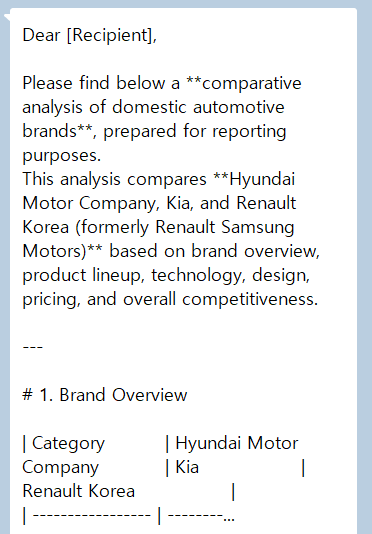
Broken AI Text. Markdown to Text is needed
Broken AI Text in the messenger chat room

🎨 Product Designer’s Insight: According to the Gestalt Law of Similarity, the human brain tries to group similar elements. Random symbols break this visual rhythm, making your message feel “hard to read.” Clean text is a powerful design tool that keeps the focus on your core message.


2. The Efficiency Math: You’re Losing 7 Hours a Month

To get Clean Markdown to Text, I used to delete these symbols manually—backspacing every single * or using “Find and Replace.” Then, as a designer obsessed with efficiency, I did the math on the opportunity cost:

  • Time per cleanup: ~40 seconds (longer for detailed reports)
  • Daily AI interactions: 20+ times
  • Daily time wasted: 15–20 minutes
  • Monthly Total: Approx. 7.5 hours

That’s an entire workday spent on deleting hashtags! To stop this “manual labor,” I built a solution inspired by the minimalism of the Bear app and the intuitive UX of SmallPDF: unmarkdown.io.


3. Unmarkdown: A 3-Second Professional Workflow

I designed unmarkdown.io with zero fluff. It focuses on one thing: The cleanest text possible.

🛠️ Smart Workflow for productivity

  1. Generate: Get your draft from ChatGPT, Gemini, or Claude.
  2. Paste: Copy the entire response into unmarkdown.io. (Takes 1 second!)
  3. Clean & Copy: Markdown symbols are removed as soon as you paste. Click ‘Copy’ to take the clean text.
  4. Send: Paste it into Slack, Teams, or your report without worrying about broken formatting.
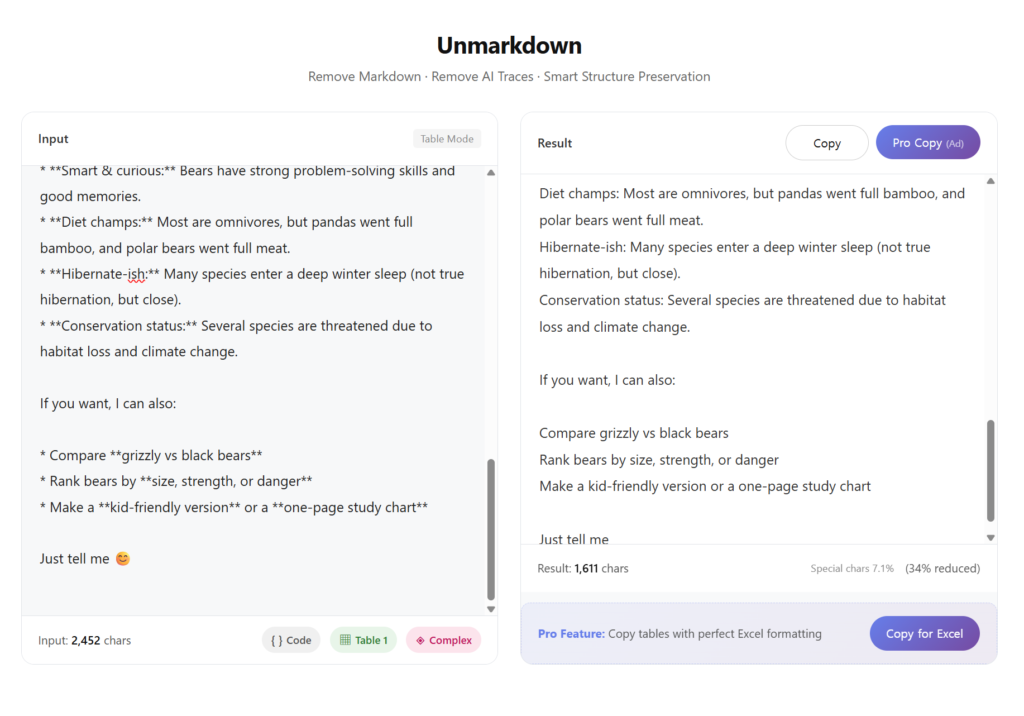
Markdown Remover Page
The actual UI of Unmarkdown

This small routine builds a reputation. To your manager, you become the person with “sharp attention to detail,” and to your colleagues, you are the one whose “messages are always easy to read.”


Closing Thoughts: Tools Assist, Humans Complete

AI pours out data at an incredible speed, but “cooking” that raw data into something digestible is still a human task. ChatGPT Markdown remover isn’t just a chore; it’s a detail that defines the caliber of your business communication.

If you’re someone who values efficiency and a clean aesthetic, this tool will give you your 7 hours back.
Get your Productivity back with this Markdown Remover!

👉 Try unmarkdown.io for free now


FAQ

Q. How is this different from using Notepad?

A. Standard “Find and Replace” can’t handle complex patterns like **bold text** or nested lists easily. This tool uses a regex-based algorithm to strip symbols while preserving the intended structure.

Q. Does it support English?

A. Absolutely. Even I am a designer based in Korea, I ensured it handles multilingual encoding. Because I needed it😂 It perfectly works without any character breakage.

Q. Is my data stored on your server?

A. No. Privacy is a priority. All processing happens within your browser; nothing is ever sent to or stored on a server.


Pasting an AI table into Excel? If leading zeros disappear or a value like 3-4 turns into a date, see When a ChatGPT table pasted into Excel changes your numbers.

Pasting a ChatGPT answer into Word instead? One test recorded what arrived as Word formatting and what did not.