An AI answer pasted into a document often arrives with its characters intact. One line reads ## Decisions instead of becoming a heading, **Friday afternoon** keeps its asterisk pairs, and the table is a block of pipe characters. Deleting all of that by hand is one way through the document. The other is Paste from Markdown in Google Docs, a right-click entry that shows up after one box is checked under Tools > Preferences. It takes the same clipboard text and reads the characters instead of printing them.
On October 4, 2026, the same Markdown text went into two documents on a personal Google account in Chrome. The first paste was a plain Ctrl+V. The second used Paste from Markdown, and that document had no Markdown characters left on the page at all. It also had a 3×3 table and a numbered list two levels deep, neither of which appears on the official list of supported syntax. One thing did not convert: the code block.
Turn on Enable Markdown before you paste
Paste from Markdown is not in the right-click menu until Markdown is turned on for the editor. Three steps:
- In Google Docs, open Tools > Preferences.
- On the General tab, check Enable Markdown and click OK.
- Right-click in the document body and choose Paste from Markdown.
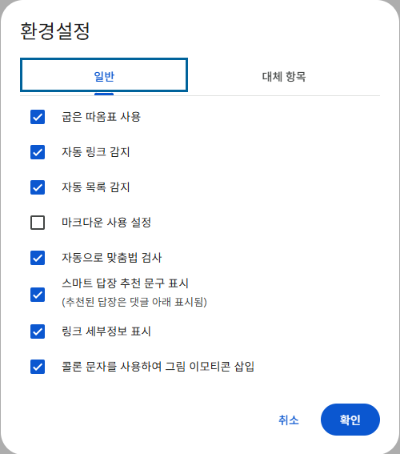
On this account the box was unchecked when the test started. That is what the test found, not a claim about every account. For the default there is an official sentence: Google’s 2024 announcement Import and export Markdown in Google Docs says the Copy as Markdown and Paste from Markdown options are off by default and can be enabled under Tools > Preferences > Enable Markdown.
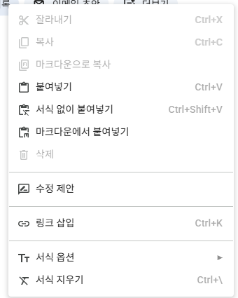
That is the answer for anyone who looked for the menu entry and could not find it. The menu was not opened with the setting off in this test, so “it shows up only once the setting is on” rests on the official sentence above rather than on a screenshot.
A plain Ctrl+V left every Markdown character as text
The first path is the default one, taken before Paste from Markdown is on the menu at all: setting off, Ctrl+V. The text on the clipboard held three heading levels, bold, italic and strikethrough, a numbered list nested two levels deep, two bullet lines, a 3×3 table, a code block and a link. None of it became formatting in the document.
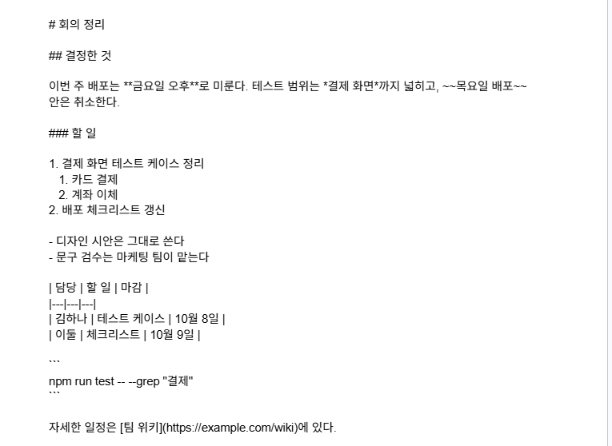
Automatic list detection was switched on in the same Preferences dialog, and the 1. and - lines still did not become lists. That is an easy one to assume the other way around, since a list looks like the one thing an editor would catch by itself.
Counted in the exported file: three lines beginning with hash marks, one ** pair, one ~~ pair, four table rows made of pipe characters, two backtick fence lines, and one bracketed link address.
Why an AI answer carries these characters in the first place is a separate question, and this test does not answer it. Another page covers why the characters are worth clearing out of an AI answer.
What Paste from Markdown converted in this test
The second path used the same clipboard text, with Enable Markdown checked and Paste from Markdown chosen from the right-click menu. Nothing was left behind as a character.
| Element | Plain Ctrl+V | Paste from Markdown |
|---|---|---|
| Three heading levels | Hash marks left as text | Heading 1, Heading 2, Heading 3 |
| Bold, italic, strikethrough | Asterisks and tildes left as text | All three applied as formatting |
| Link | Brackets and address left as text | A working hyperlink on the link text |
| Markdown characters left | Every kind, still as text | None |
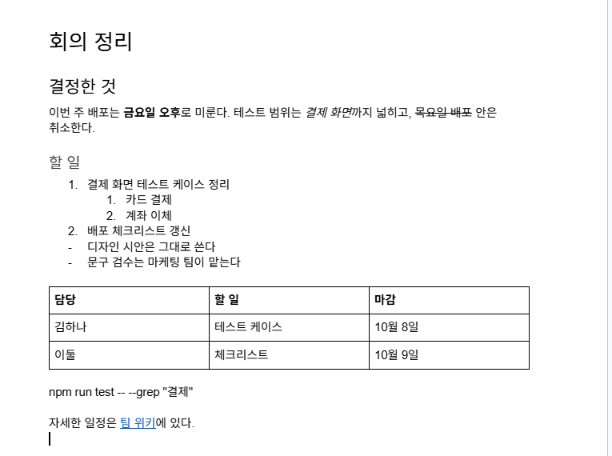
The headings matched the number of hash marks, so a three-level outline came through as Heading 1 through Heading 3. Bold, italic and strikethrough were all applied. The link text carried a real hyperlink to its address. This is one run of one input on October 4, 2026, on one personal account.
The official list doesn’t mention tables or nested lists
If the answer you pasted has a table or a numbered list in it, the official page does not say what becomes of them. Google’s help page on using Markdown in Docs gives the supported syntax as italics, bold, strikethrough, links and headings. Tables, nested lists and code blocks are not on that list. The page was opened again on October 9, 2026 to check, and it carries no “last updated” date.
In this test Paste from Markdown converted them anyway. The 3×3 pipe table came out as a real table object, the numbered list kept both of its levels, and the two bullet lines became bullets. Why items absent from the official list converted is not something two pastes can answer.
The code block lost its backticks but didn’t become code
Paste from Markdown did not convert everything. The backtick fences around the code block were gone, but the command line between them arrived as an ordinary paragraph: Normal style, no monospaced font, no code block. After pasting, that is the one part still worth fixing by hand.
If what you actually want is the characters gone rather than turned into formatting, the Markdown Remover strips them out of the text instead. In its output a code block keeps its lines, with a [Code] label in front of them.
How this was tested, and what wasn’t tested
The test ran at about 1 a.m. on October 4, 2026, in Chrome on Windows, signed in to a personal Google account rather than a Workspace account. The input was one set of Markdown meeting notes containing three heading levels, bold, italic, strikethrough, a numbered list nested two levels deep, two bullet lines, a 3×3 table, a code block and a link. It went onto the clipboard as plain text, the same as copying out of a text editor. Both documents were then exported as .docx files and opened in Word to check heading levels, list nesting, table and link objects, and the characters left on the page.
The Docs interface and the pasted notes were both in Korean. The English option names used above are the ones on Google’s English help page.
Not tested:
- A plain Ctrl+V with Enable Markdown switched on. Path 1 had the setting off, path 2 used Paste from Markdown from the menu, so that combination is outside this test.
- Typing Markdown straight into a document. The automation got tangled with the Korean input method, which is a limit of the test setup, not of Google Docs.
- Opening a .md file through File > Open. The file picker sits in a frame the automation could not reach; a person can do it in a minute.
- Workspace accounts, mobile, Safari and Google Slides.
One practical note: the setting goes back off as easily as it went on. After this test the box was unchecked again, and Preferences was reopened to confirm it had stayed off. Whether leaving it on changes anything about other pastes was not measured. Each path above ran once, with one input, on one account, on October 4, 2026.