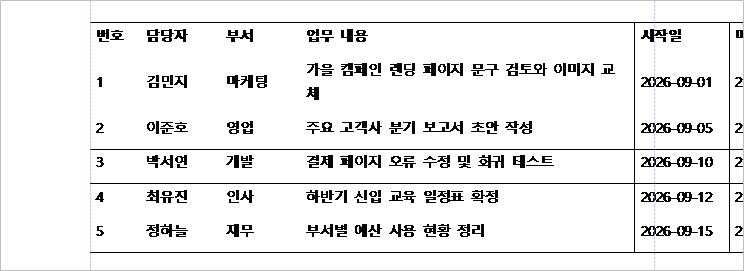
You paste an Excel table into Word, and the right side of it disappears past the margin. It happens most with work tables whose columns were set wide in Excel, like a Task or Notes column with room for a whole sentence.
If the table is already in your document, click inside it and choose AutoFit Window from the Table Layout tab. If you can paste it again, choose Use Destination Styles from the Paste Options button. Word didn’t make the table bigger. It kept the column widths the table already had in Excel.
Already pasted? Use AutoFit Window
Already pasted the Excel table into Word? There’s no need to delete it and start over. Three steps on the table you have will do it.
- Click anywhere inside the table.
- Open the Table Layout tab on the ribbon.
- Select AutoFit, then AutoFit Window.
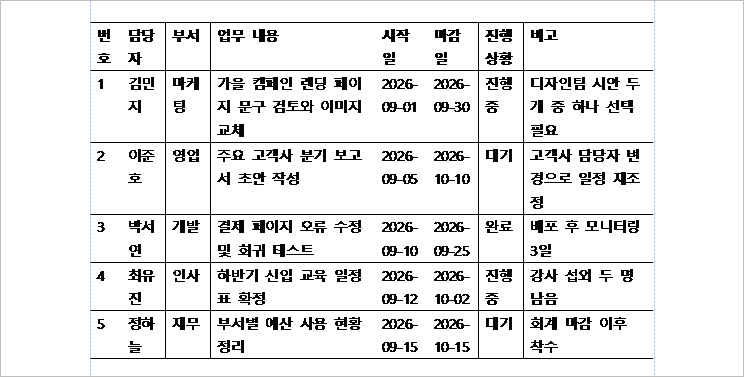
On the overflowing table in this test, those three steps took it from 860pt to 467.5pt wide, just inside the 468pt the page had room for. AutoFit is a regular Word table feature, covered in Microsoft’s Resize a table, column, or row help page.
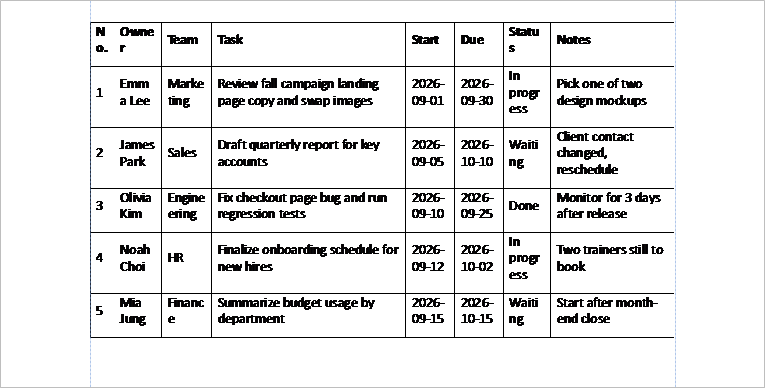
The fit came at a cost in this render. The narrow columns broke words partway through, and rows grew to two or three lines. That’s what one page render showed, not something measured across many tables.
AutoFit Contents, in the same menu, gave the same 467.5pt in this test.
Pasting again? Use Destination Styles
If you haven’t pasted the Excel table into Word yet, or you can delete it and paste again, the Paste Options button saves a step. Paste the table first. Then click the Paste Options button that appears next to it and choose Use Destination Styles.
The same table came in at 467.5pt and fit the page. Microsoft’s Copy from Excel to another Office program page says this option is usually the best way to paste if you want to keep the gridlines.
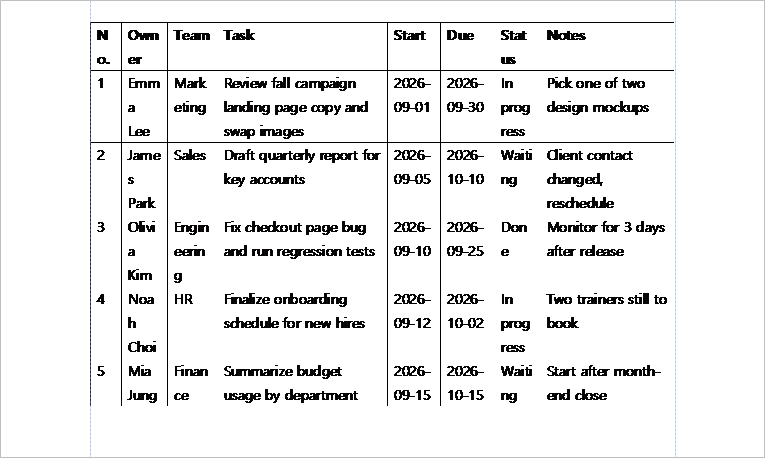
Both fixes ended at the same width, and both left narrow columns breaking words. In this test, Use Destination Styles broke names into more pieces (Emm / a / Lee) than AutoFit Window did.
Why an Excel table into Word runs wide
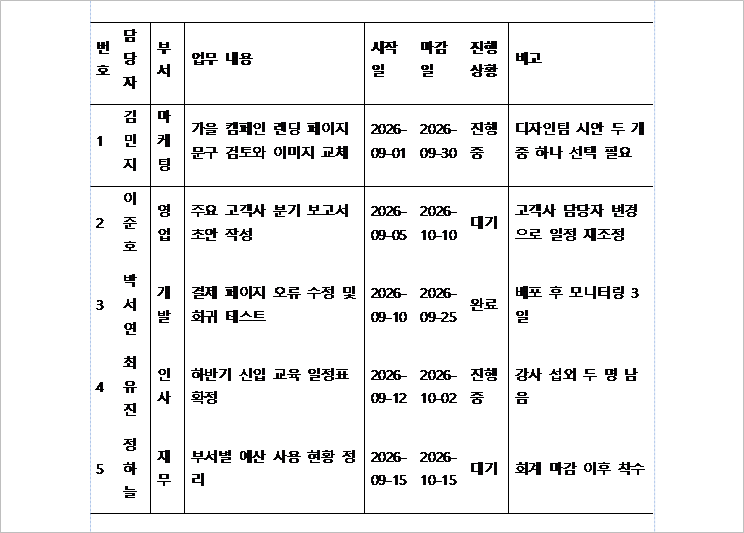
The column widths travel with the copy. The test table had 8 columns that added up to 858pt in Excel. Pasted into Word, it measured 860pt. A US Letter page with 1-inch margins leaves 468pt for text, so 392pt of table had nowhere to go.
So the extra width came from Excel, not from Word. When you paste an Excel table into Word with Keep Source Formatting, Word keeps the widths it receives and doesn’t shrink them to fit the page.
| How it was pasted | Table width | Result |
|---|---|---|
| Keep Source Formatting | 860pt | 392pt wider than the page allows |
| Keep Source, then AutoFit Window | 467.5pt | Fits |
| Keep Source, then AutoFit Contents | 467.5pt | Fits |
| Use Destination Styles | 467.5pt | Fits |
| Keep Source on a landscape page | 860pt | Still 212pt too wide |
| Picture | 468pt | Fits, but the text can’t be edited |
| Keep Text Only | none | No table, just 6 tab-separated paragraphs |
On this PC, a plain Ctrl+V gave the same result as Keep Source Formatting. That was checked in an earlier run on A4 paper. If the Pasting from other programs default has been changed in Word’s options, Ctrl+V may paste differently.
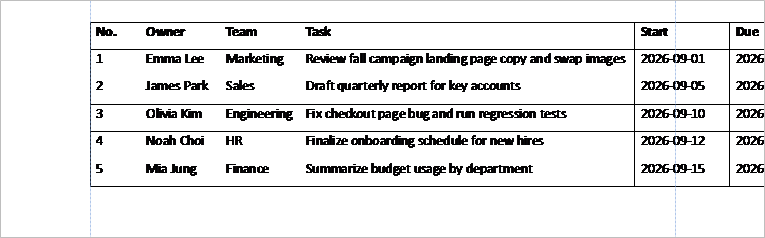
In inches, the table was about 11.9 inches wide on a page with 6.5 inches of room. About 5.4 inches hung off the side.
Not every Excel table into Word overflows. A table whose columns add up to less than 6.5 inches fits on this page as it is. This one had two wide text columns, Task and Notes.
Turning the page sideways isn’t enough
Switching the page to landscape sounds like the obvious fix. On a landscape Letter page with the same margins, the usable width grows to 648pt, or 9 inches. The table was still 212pt too wide, and the Notes column was cut off.
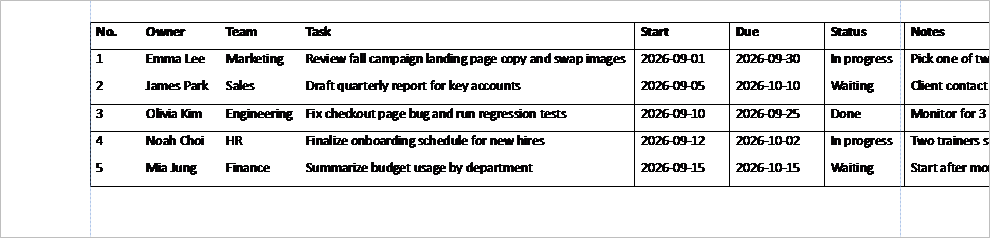
On Letter paper, landscape only helps if the table is under 9 inches wide. This one was almost 12. For a table like this, use one of the two fixes above.
Picture or Keep Text Only
The Paste Options list has two more choices, Picture and Keep Text Only. Picture shrank the table to 468pt, exactly the width between the margins, but it became an image. You can’t edit the cells, and the text was tiny.

Keep Text Only drops the table completely. The same table became six paragraphs with tabs between the cell values, which matches Microsoft’s description of the option.
That’s also why AutoFit can seem to be missing. If you click inside what looks like a table and no Table Layout tab appears, it’s probably a picture or tab-separated text, not a table.
Tables copied from ChatGPT or another AI chat are a different case. The copied text can carry Markdown symbols instead of Excel column widths. The Markdown Remover has a Copy table for Excel button that turns them into cells you can paste into Excel first.
How this was tested, and what wasn’t
The test ran on October 2, 2026, with Excel 16.0 (build 20326) and Word 16.0.20326 for Windows. The Office interface on this PC is in Korean, so the option names here are the English names from Microsoft’s documentation.
The table had 8 columns and 6 rows (No., Owner, Team, Task, Start, Due, Status, Notes) in Calibri 11, with a bold header row and borders. It was pasted into a new US Letter document with 1-inch margins and Calibri 11 as the body font. Width here means the sum of the cell widths in the first row, plus the table’s left indent.
The page images are Word’s own render of the printed page, not screenshots. The dashed blue lines mark the left and right margins.
Not tested:
- Pressing Ctrl+V on the Letter page itself (the Ctrl+V result above comes from the earlier A4 run)
- Word for Mac and Word for the web
- The two linked paste options
- Dragging column borders, a smaller font, or smaller cell margins to stop the word breaks
These numbers come from one table on one PC. In a first run with a different font in the Excel cells, the same table pasted at 892.4pt instead of 860pt, so expect yours to differ somewhat.
If you’re not sure how a table was pasted, AutoFit Window is safe to try. In the earlier A4 run, applying AutoFit to a table that already fit didn’t make it any wider.