When you paste a Word table into Excel, a cell that holds two lines splits into two rows, and the cell next to it comes in merged across both. The fix runs in Word, before the copy: replace the line breaks inside the table with a marker, paste, then turn the marker back into line breaks in Excel.
The numbers here come from a test on September 29, 2026, in Word 16.0.20326 and Excel 16.0 (build 20326) on Windows, run again on October 24, 2026 for the pictures with the same results. One 3-by-4 table was pasted three ways. A plain Ctrl+V produced 6 rows and 6 merged cells. Paste Special with Unicode Text produced 7 rows and no merged cells, but the second lines landed in the wrong column. Replacing the line breaks first produced 4 rows and no merged cells. One installation, one build, one table, two runs.
Keep the rows: swap the line breaks before you copy
To paste a Word table into Excel without the extra rows, the work happens in Word first. These steps come from an accepted answer on Microsoft Q&A, Copying from Word to Excel and retaining Line Breaks, posted June 30, 2021.
- In Word, select the table. The replacement in this test ran inside the table’s range only.
- Open Find and Replace. Find
^p, the paragraph mark, and replace it with@@. Run it again with^l, the manual line break. - Copy the table and paste it into Excel.
- In Excel, open Find and Replace, find
@@, click in the Replace with box and press Ctrl+J.
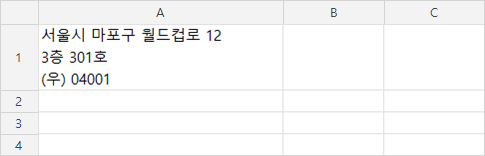
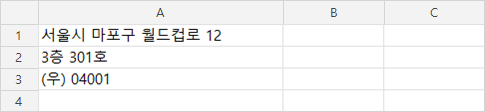
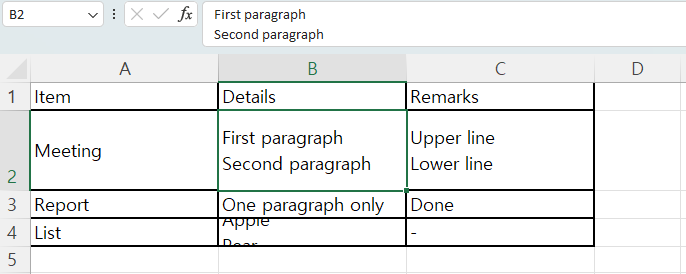
In this test the paste landed in 4 rows with no merged cells, each two-line cell holding one value with @@ in the middle. After the replacement in Excel, cell B2 held two lines again. Excel kept the row heights it had after the paste, though, so in the October 24 run row 4 stayed one line tall and cut its two lines off until AutoFit Row Height (Home, then Format) made it taller.
Two of the steps above were not run by hand in this test. Word’s own Find and Replace dialog may ask whether to search the rest of the document after the table, and Ctrl+J in Excel’s Replace with box was not tested as a key press.
A formula in a spare column is the other route for step 4: =SUBSTITUTE(A1,"@@",CHAR(10)), where CHAR(10) is the line break. This test replaced the markers with Excel’s own Find and Replace, not with the formula.
A 3-by-4 Word table into Excel landed in 6 rows
The test table had 3 columns and 4 rows. Three of its cells held two lines each, and the rest held one line.
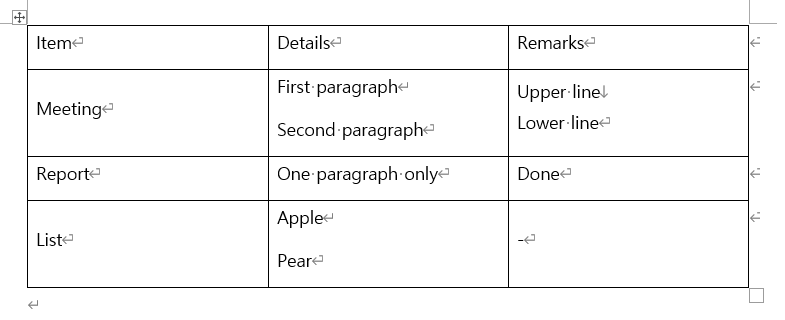
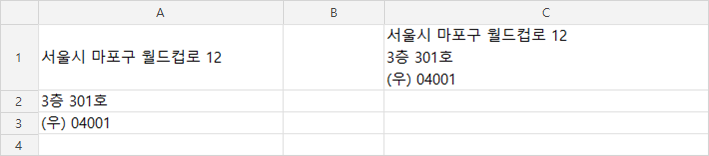
Pasting that Word table into Excel with a plain Ctrl+V produced six rows. Each two-line cell split into two rows, and the one-line cells in those rows came in merged to cover the split. The merged ranges were A2:A3, A5:A6 and C5:C6: three ranges, six cells in all.
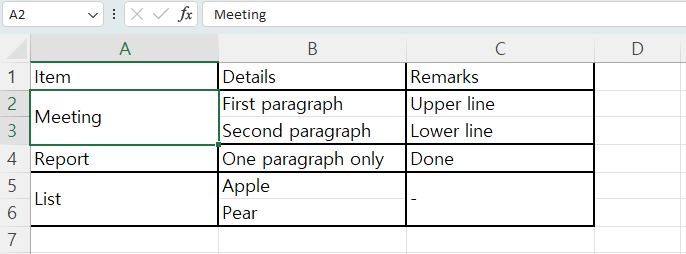
The merging is what covers the split. A row that only exists because the cell beside it broke in two has nothing of its own to hold, so the one-line cell spans both rows instead. Word’s second row held two of the multiline cells, so only column A was merged there; its fourth row held one, so columns A and C were both merged.
| How it was pasted | Rows in Excel | Merged cells |
|---|---|---|
| Ctrl+ | 6 | 6 |
| Paste Special, Unicode Text | 7 | 0 |
| Markers in Word first, then Ctrl+ | 4 | 0 |
What that means on the sheet: one record from the Word table now occupies two rows, and the cell beside it is a single cell covering both of those rows.
Enter and Shift+Enter did the same thing
The two-line cells were not made the same way. Cell B2 held two paragraphs made with Enter, cell C2 held two lines made with Shift+Enter, and cell B4 held two paragraphs again. All three split into two rows in Excel.
So the split does not depend on which line break is in the cell. That is why step 2 above replaces ^p and ^l in two passes. Microsoft’s help page for this task mentions the extra rows in one sentence about extra carriage returns, quoted further down.
Pasting as Unicode Text was worse, not better
Paste Special is the obvious next thing to try, because dropping the formatting sounds like it would drop the merging too. It did. Paste Special with Unicode Text produced 7 rows and no merged cells at all. In Excel that option sits under Home, then Paste, then Paste Special.
The table came apart instead. The second line of each multiline cell moved into column A, at A3, A4 and A7, rather than staying under the column it came from. Losing the merged cells cost the column alignment.
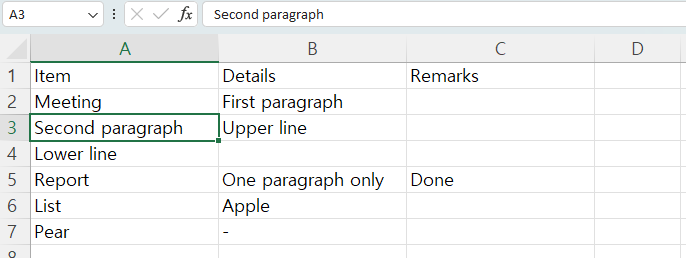
Neither paste route in this test put the Word table into Excel in four rows. What changed the outcome was the text in the Word document, not the paste format.
What the help page promises, and where it stops
Microsoft’s Copy a Word table into Excel page says: “Excel pastes the contents of each Word table cell into a single cell.” In this test the one-line cells did arrive that way, one cell each. The three two-line cells did not.
The page’s one line about rows is a warning before you copy: “Make sure there aren’t any extra carriage returns in the cells of the table, otherwise this may cause extra rows in Excel.” That sentence covers the extra rows.
The word merge does not appear on the page, so the merged cells that come with those rows are not described there. The Applies to list runs from Excel and Word for Microsoft 365 back to Excel and Word 2016, and the page shows no last-updated date; the test here covers one build.
A table copied out of ChatGPT or another AI chat is a different case. It arrives as text rather than as a Word table object, and what breaks there is the values rather than the rows, as in when a ChatGPT table pasted into Excel changes your numbers. The opposite direction, an Excel table that runs past the margin once it is in Word, is its own test: when an Excel table pasted into Word runs off the page.
How this was tested, and what wasn’t
The pastes first ran on September 29, 2026, at 11:32 Korea time, in Word 16.0.20326 and Excel 16.0 (build 20326) for Windows, with a Korean interface and Korean text in the table. They ran again on October 24, 2026, at 23:13 Korea time, for the pictures: the same build and the same Korean installation, but with the display language set to English and the same table written in English words. Both runs gave the same row counts, the same merged ranges and the same cell positions.
For the pictures, columns A to C were widened before each paste so the words fit. A run at the default column width a few minutes earlier gave the same rows, merged ranges and cell positions.
The Ctrl+V result was a real key press into the visible Excel window, with the window in front. The same paste through Excel’s automation interface gave the same six rows and the same merged cells. Paste Special and the Word replacement ran through that interface. In the October 24 run the marker paste was a real Ctrl+V as well, and the replacement in Excel and the row AutoFit ran through the automation interface.
There was one table, 3 columns by 4 rows, pasted into a new workbook at cell A1. It had no merged cells of its own, so a Word table that already contains merged cells may land differently.
Not tested:
- A Word table that already has merged cells
- Excel for Mac, Excel for the web and Google Sheets
- An English-language Office installation
- Find and Replace run by hand in Word’s dialog
- Ctrl+J typed into Excel’s Replace with box
- AutoFit Row Height chosen from the menu by hand
- The SUBSTITUTE formula route
- Pressing Ctrl+M after the paste
- Several tables pasted in one go
- What merged cells do to sorting and filtering
One thing to expect after the markers go back to line breaks: Excel switched line wrapping on for those cells by itself, but it did not change the row heights. These results are one installation, one build, one 3-by-4 table and three pastes, recorded on September 29, 2026 and repeated on October 24, 2026.